Configure your profile and appearance
Fill in your host profile, set your default appearance and enable email notifications.
The /hosts/settings page is the configuration center of your Casabee account. This is where you fill in your personal info, set the default appearance of your booklets and connect third-party services like Stripe. This page explains each section step by step.
Access settings
Click on the « Settings » icon in the side menu to reach /hosts/settings. The sections are organized in tabs or in collapsible sections.
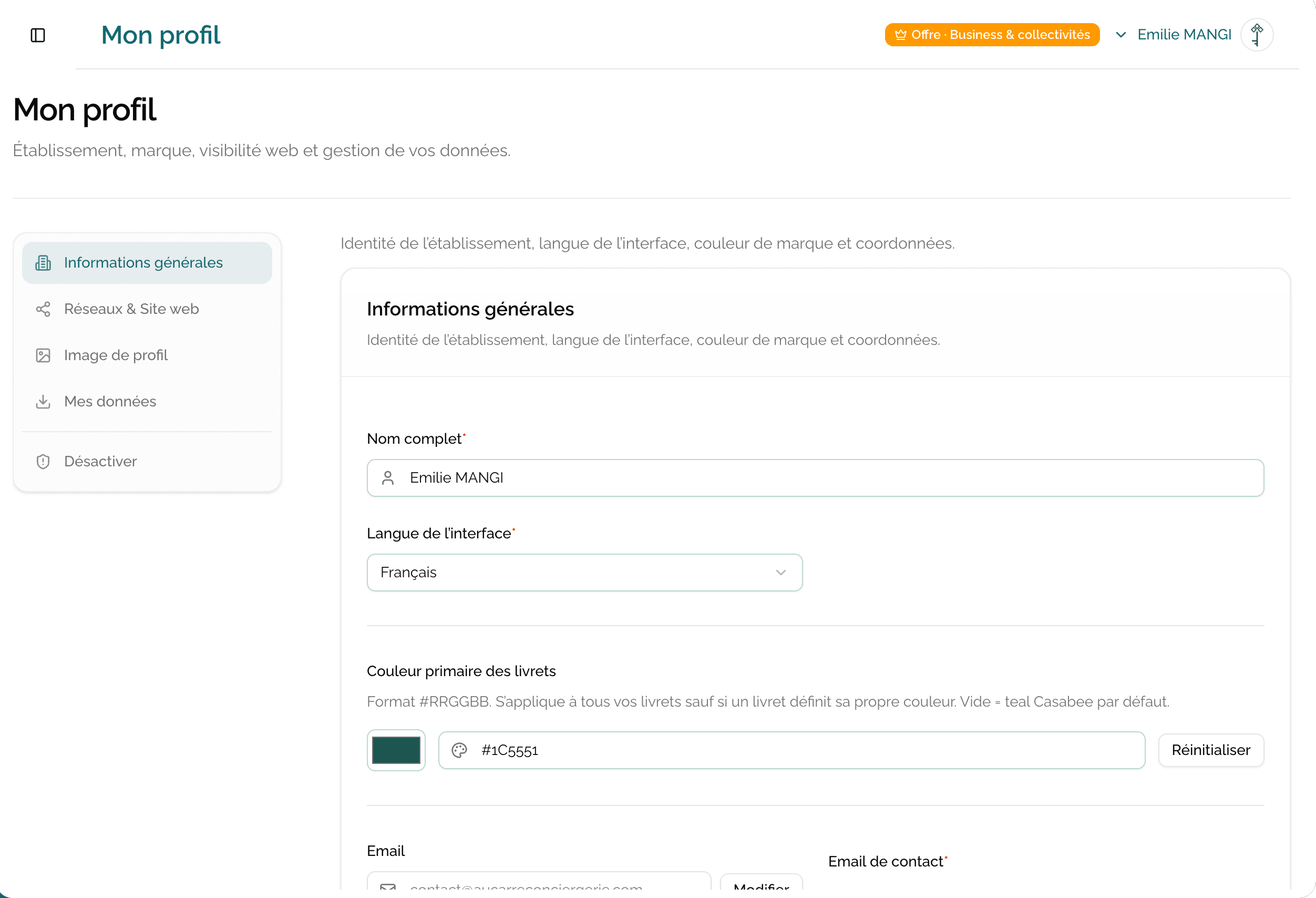
Section 1 — Personal information
Fill in your identification data:
- First name and Last name
- Email (used for login and notifications)
- Phone
Phone and email visible on the guest side
If you fill in the phone and email here, they may appear in the contact info of your published booklets. Handy so your guests can reach you directly when needed.
You can modify this information at any time. Changing the email requires a revalidation via a link sent to the new address.
Section 2 — Localization
Define the regional context of your account:
- Language of the host interface (French, English, Spanish).
- Timezone (used to date orders and statistics).
- Default currency displayed (usually EUR for hosts in France).
The language of the host interface is independent of the language in which your booklets are displayed on the guest side. Public booklets are automatically available in several languages depending on your plan.
Section 3 — Default appearance
This section defines the visual identity that applies by default to all your booklets (unless you override at the level of a specific booklet):
- Profile color — Hex code or palette. This is the dominant color of the booklets.
- Logo — PNG or SVG image displayed in the navbar of every public booklet.
The application hierarchy
- The booklet color (if defined) always takes precedence.
- Otherwise, the profile color applies.
- Failing that, the default Casabee color.
Same logic for the logo: a booklet can override the profile logo. See Customize a booklet's appearance.
Define here the color and logo of your main brand (your hotel, your management company). You won't need to redefine them on each new booklet.
Section 4 — Email notifications
Enable or disable the emails that Casabee sends you:
- New orders (recommended: enabled)
- Stock outages (recommended: enabled)
- Payment failures on your subscription (recommended: enabled)
- Casabee newsletter (optional)
- Tips and best practices (optional)
Disable order notifications only if you use another channel to track them (e.g. Slack, SMS). Otherwise you risk missing sales.
Section 5 — Stripe integration
Status of the connection to your Stripe account for the shop:
- Status: connected / not connected.
- Direct link to the Stripe dashboard.
- « Disconnect » button if you want to change Stripe accounts.
For the initial connection procedure, see Configure Stripe to sell.
Best practices
- Fill in the profile completely as soon as you sign up: you won't come back to it often and you'll enjoy a well-finished booklet from the first published one.
- Choose a strong color for your profile: too pale, it blends with the background and loses its identity.
- SVG logo rather than PNG when possible: it remains sharp at all sizes.
- Check your notifications: a missed email = an order potentially not fulfilled.
You're now equipped to make the most of Casabee. Have a great journey!