Publish and share your booklet
Put your booklet online, generate its QR code and share it efficiently with your guests.
Is your booklet ready? It's time to publish it and put it in the hands of your guests. This page explains how to publish, how to share it and how to manage its lifecycle.
Publish a booklet
Open your booklet from /hosts/guides.
Check that the essential information is filled in: name, address, description, cover photo, at least a few modules.
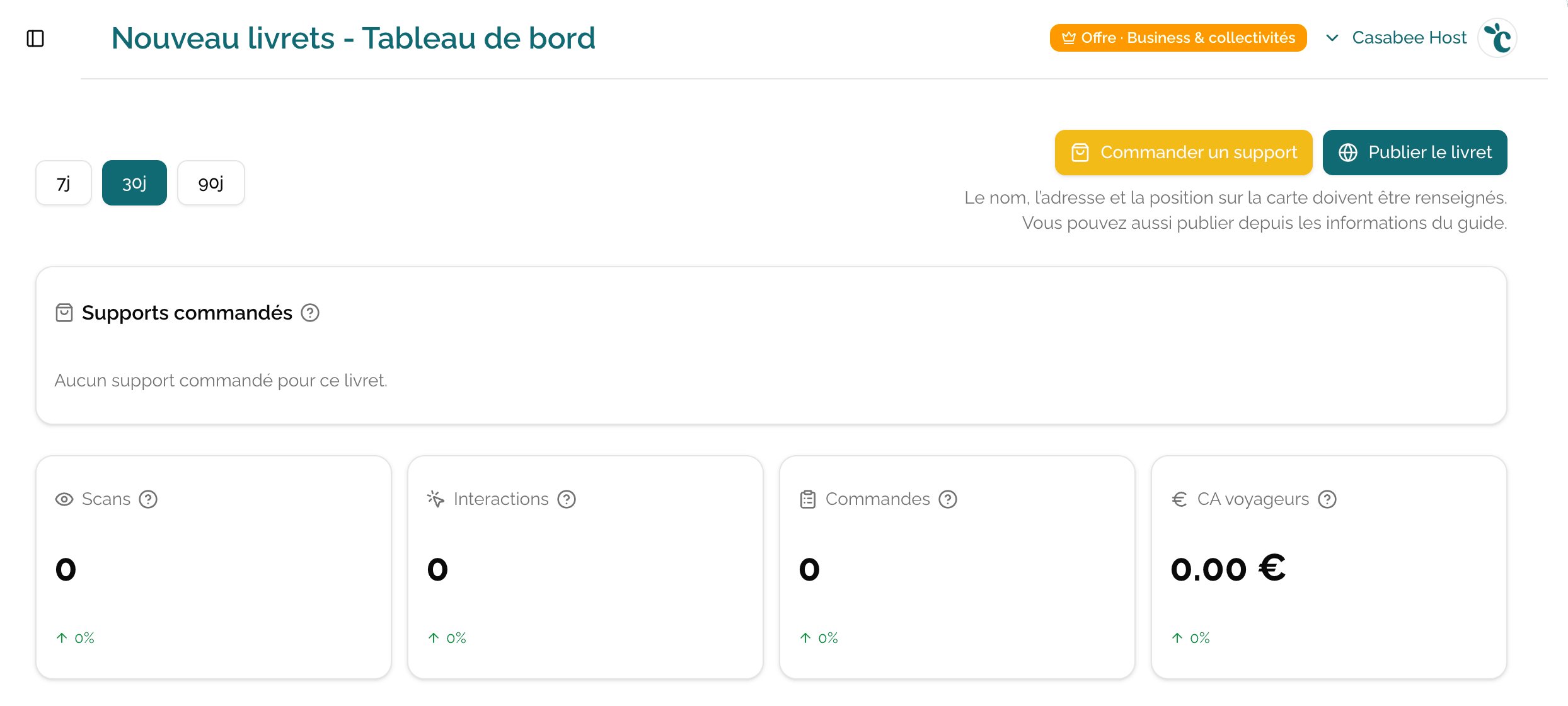
- Click on the « Publish » button at the top right of the editing screen.
- Confirm in the modal that opens.
Your booklet switches to published status and becomes publicly accessible.
The public URL
Once published, your booklet has a unique URL of the form:
/fr/guide/[slug]
The slug is automatically generated from your property name (e.g. villa-marina-biarritz).
The slug is immutable
Once the booklet is published, the slug can no longer be changed — even if you change the property name. This ensures that printed QR codes and shared links continue to work.
The QR code
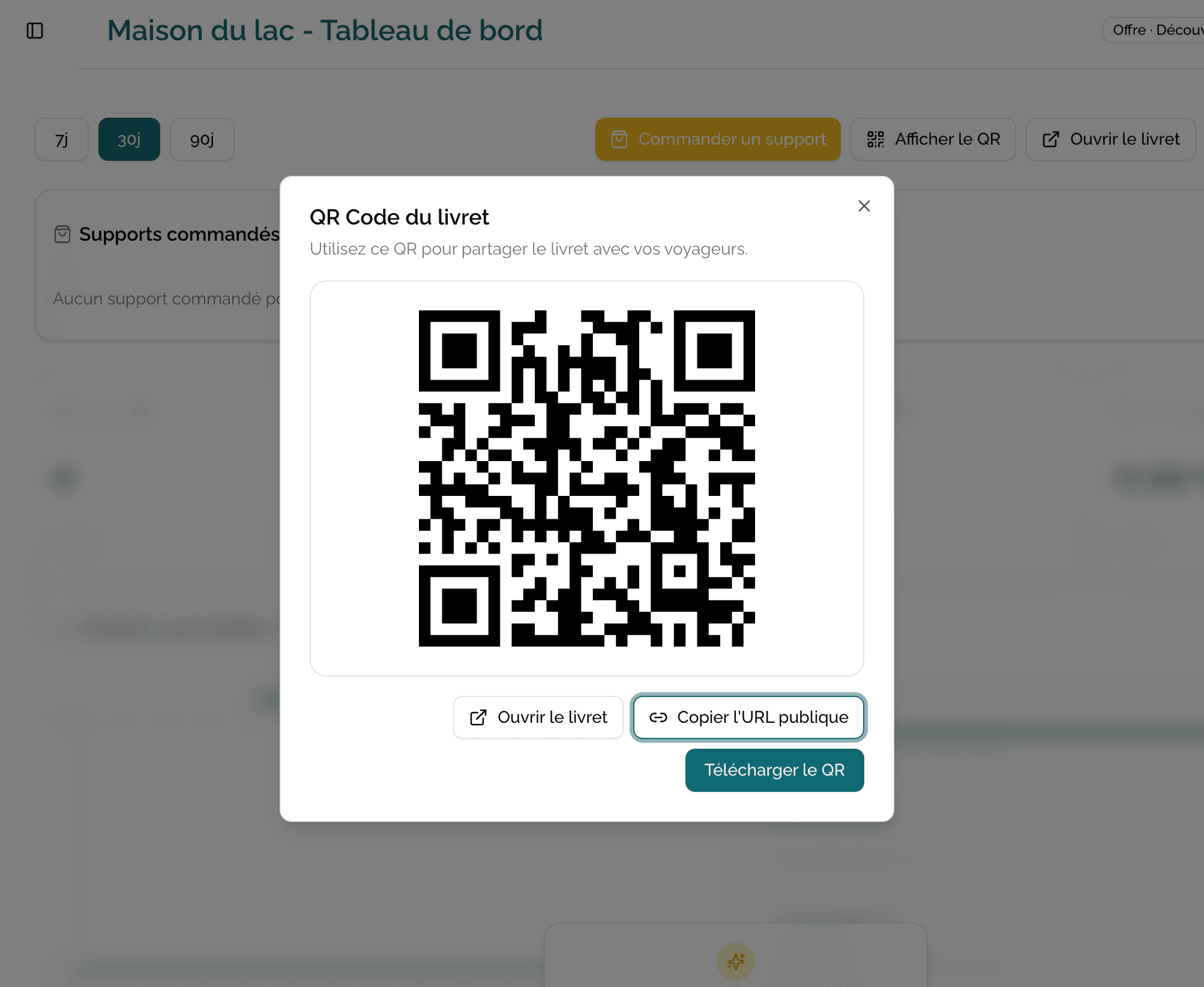
Casabee automatically generates a QR code for each published booklet. You download it from the booklet dashboard:
- PNG or SVG format depending on your usage.
- Printable in large format without loss of quality (SVG).
- Includes the discreet Casabee logo at the bottom (option to remove on higher plans).
How to share it?
Several channels work well depending on the context:
On site
- Frame in the room: print the QR code in A5 or A6 and place it on the bedside table.
- Sticker on the fridge or front door.
- Tag on the keychain handed over on arrival.
Before arrival
- Automatic email 24 or 48 hours before check-in (with a message like "Here's all the practical info for your stay").
- Short SMS with the direct link.
- Message via the Airbnb / Booking inbox.
Send the booklet before arrival, not during. Your guests prepare their stay, spot the right addresses, and arrive relaxed. It's also an excellent lever to sell additional products (welcome basket, grocery service).
Booklet statuses
A booklet can be in three states:
| Status | Publicly visible | Editable | Use case |
|---|---|---|---|
| Draft | No | Yes | Creation in progress, content not finalized |
| Published | Yes | Yes | The booklet is in service for guests |
| Archived | No | Read-only | Property no longer rented, but history is kept |
You can move a booklet from published to archived at any time from the « More » menu on the booklet card.
Next step
Now that your booklet is up and running, you can enrich its content with modules or activate the shop.