Understanding modules
Discover what a Casabee module is, what it's for and why it's the central building block of your booklets.
Modules are the fundamental content building block of Casabee. They are the blocks your guests will see when browsing your booklet: practical info, recommendations, services, insider tips. Understanding how they work will help you build rich booklets without repeating work.
What is a module?
A module is a reusable content block, independent of booklets. You create it once, and you can then add it to several booklets in one click. Each module contains:
- A title and a description (short + long).
- One or more images.
- A usage category (activities, events, etc.).
- Optionally a price and a discount (for sellable modules).
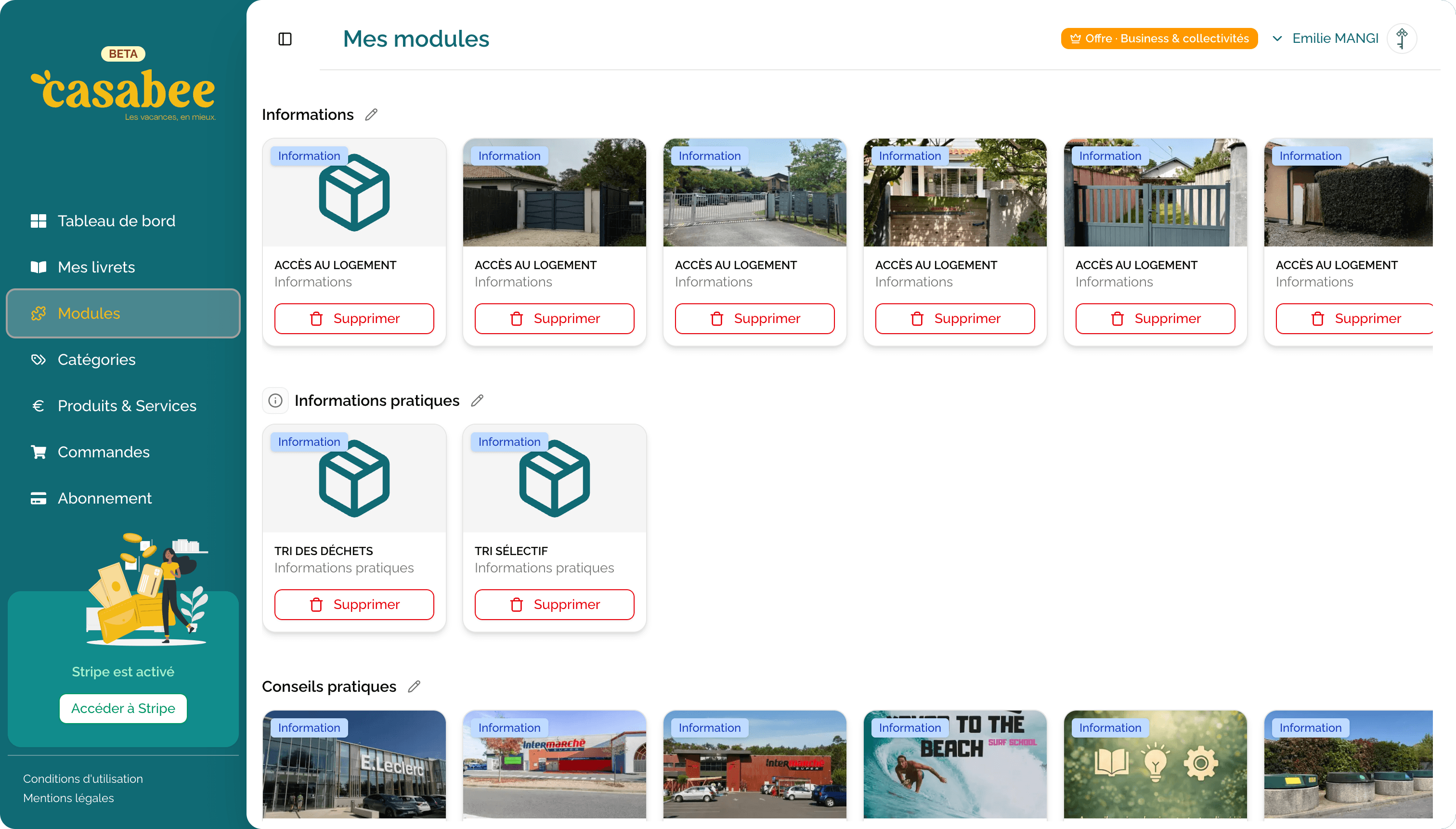
Module types
Casabee distinguishes two main types:
Info module
Purely informational block. Ideal for Wi-Fi, check-in, house rules, free recommendations.
Product module
Sellable block via the shop. The guest can order and pay online (welcome basket, excursion, late check-out).
Product modules require you to have connected Stripe. Otherwise they remain read-only on the guest side.
Typical usage categories
You can organize your modules in categories that structure the public display. Here are the most frequent uses:
- Activities: hikes, beaches, parks, museums, sports.
- Events: local festivals, seasonal markets, village fêtes.
- Insider tips: recommended addresses, partner promo codes.
- Partners: local businesses you collaborate with (baker, caterer, taxi).
- Practical services: Wi-Fi, check-in / check-out, parking, cleaning instructions.
For a mountain gîte, you can create a « Winter activities » module with the nearest ski slopes, another « Summer activities » with the hikes, and switch their display category according to the season.
The benefit of reuse
This is the great strength of the system: a module created once is used on as many booklets as you want.
In practice:
- You manage two gîtes in the same village? The « The artisan baker of the village » module is added to both booklets in two clicks.
- You update the description of this module? The change automatically propagates to all booklets where it's displayed.
- You remove the module from a booklet? It remains available in your library for the others.
A module's lifecycle
A module goes through two states:
- Draft — Being edited, not publicly visible even if added to a published booklet.
- Published — Visible on all booklets where it's displayed.
You publish or unpublish a module from its card, without touching the associated booklets.
Going further
Now that you understand the logic, move on to actually creating a module and adding it to a booklet.