Create and add modules to a booklet
Create a module from scratch or via a Casabee template, then add it to one or more booklets.
This page explains how to create a module in your library, then how to display it on one or more booklets. The two steps are distinct: a module first exists in the library, then you choose where to display it.
Create a module
Go to /hosts/modules from the « Modules » menu.
- Click on « + New module » at the top right.
- Fill in the form (see details below).
- Save as draft, then publish when you're satisfied.
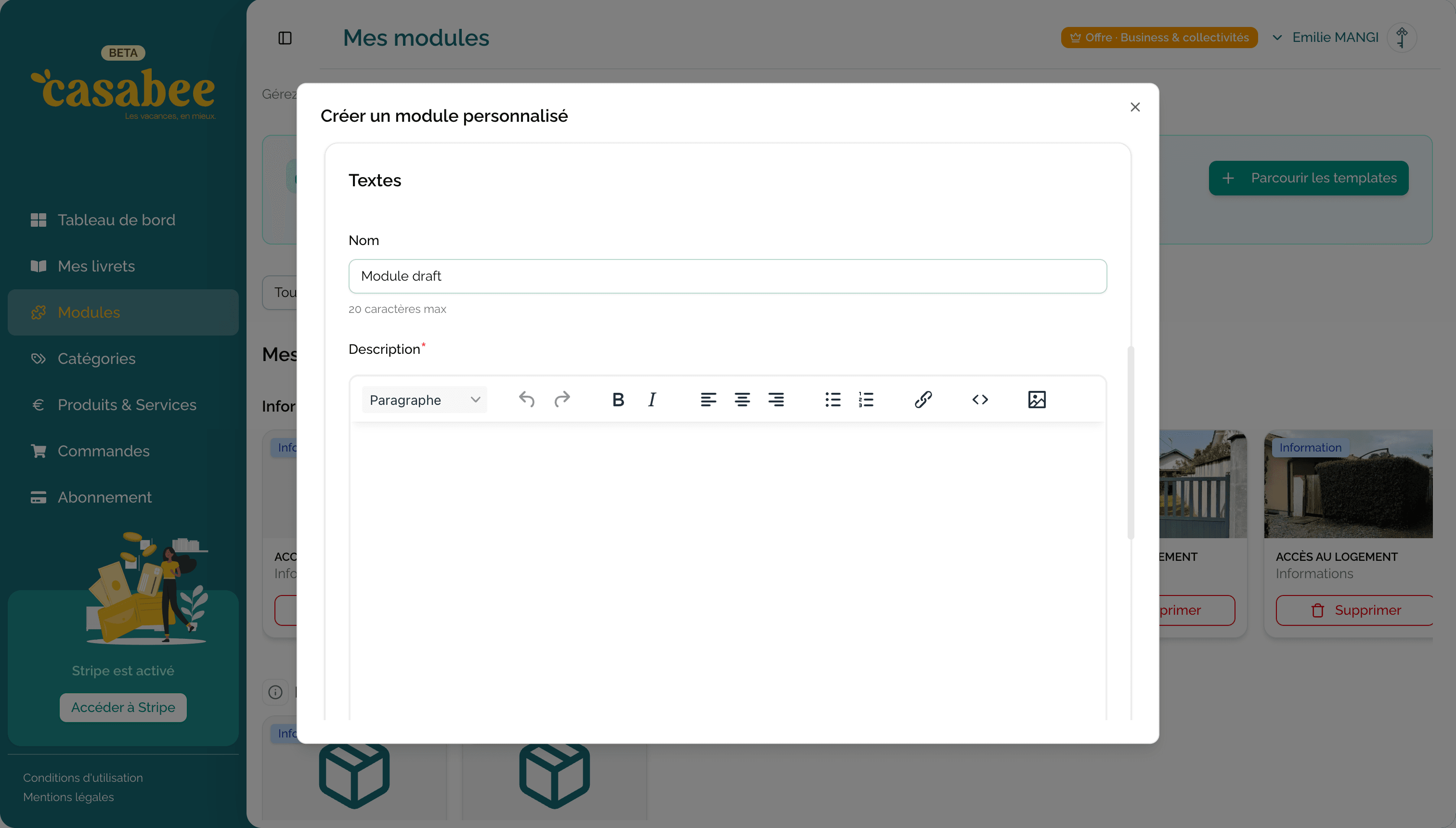
Form fields
- Title (required) — Name of the module as it will appear in the booklet.
- Short description — A sentence summarizing the module. Displays as a preview on the booklet's module list.
- Long description — Rich text with bold, italic, lists, links. This is the body of the module when the guest clicks for more info.
- Images — Photo gallery. The first image serves as the thumbnail.
- Category — Choose from your custom categories or Casabee templates. See Organize your categories.
Start from a Casabee template
Casabee provides a library of ready-to-use templates (Wi-Fi, check-in, house rules, classic recommendations). You can duplicate them for free into your account:
- « Templates » tab on the Modules page.
- Click « Use this template » on the one you're interested in.
- The module is copied into your library, with all fields pre-filled.
- You can then customize it (text, photos, price).
Always start by browsing the templates before creating a module from scratch. You'll save time and benefit from pre-written editorial best practices.
Add a module to a booklet
A created module isn't displayed until you've added it to a specific booklet.
Open the relevant booklet from /hosts/guides.
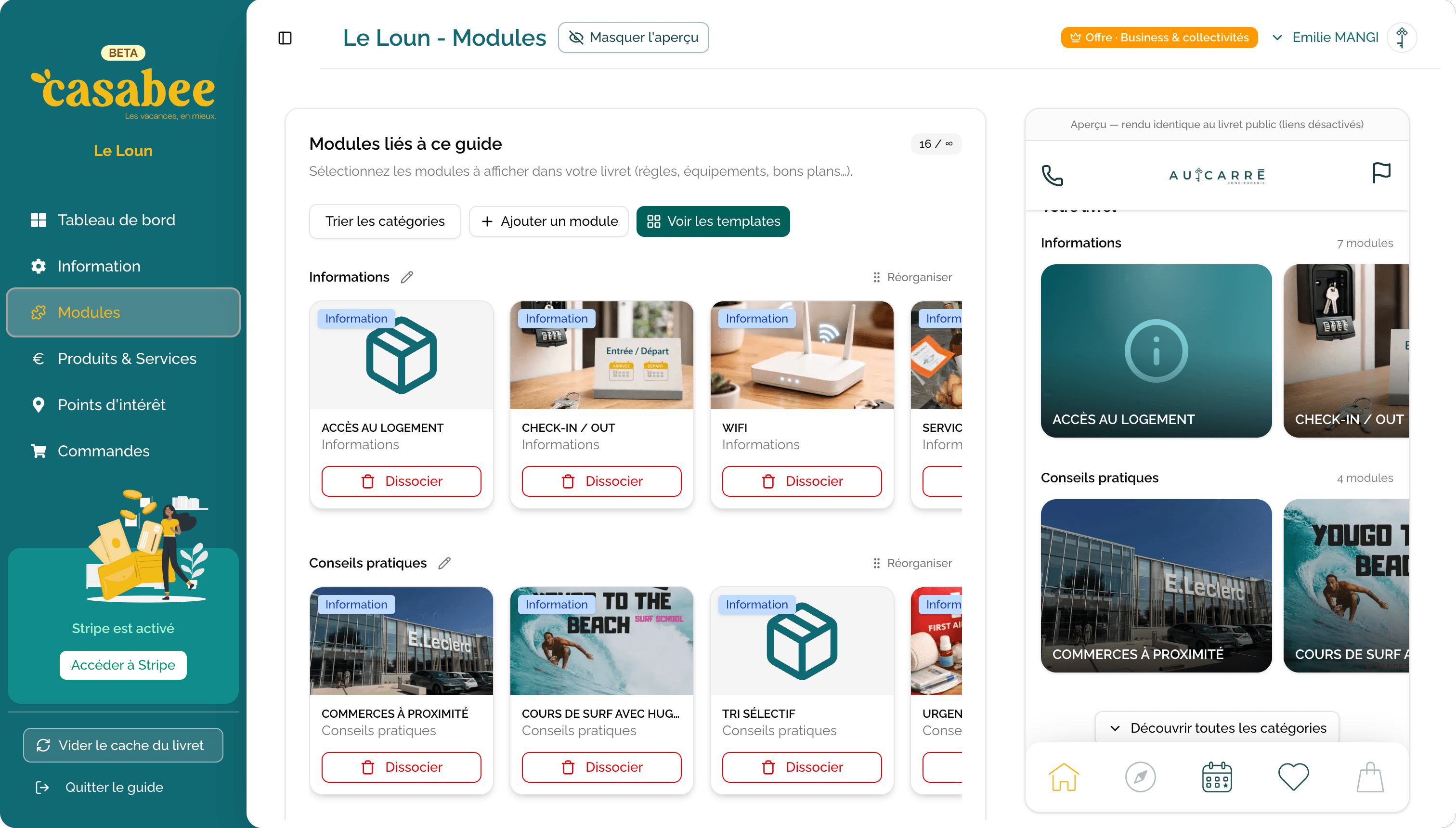
- Click on the « Modules » tab.
- Click on « + Add a module ».
- Select one or more modules from your library.
- Confirm.
Reorganize the order
The order of modules in a booklet is managed by categories:
- You can drag and drop a category to move it higher or lower.
- Within a category, drag and drop modules to reorder them.
- The order you set here is exactly what the guest will see.
Put at the top what's most useful on arrival: Wi-Fi, check-in instructions, door code. Tourist recommendations can come below.
Edit or remove a module
- Edit a module: the change propagates to all booklets where it's displayed.
- Remove a module from a booklet: the module remains in your library, it's just no longer displayed on this specific booklet.
- Delete a module: definitive action, removes the module from all booklets and from the library.
Next step
If you want to sell modules, first configure Stripe then create your first products.