View invoices
Download your Casabee invoices and change your payment method from the Stripe billing portal.
All Casabee billing goes through Stripe. From the Stripe billing portal, you download your invoices, manage your payment methods and update your billing details. This page explains how to access it.
Access the Stripe Billing portal
Go to /hosts/subscriptions.
- In the « Billing & invoices » card, click « Billing portal (Stripe) ».
- You're redirected to Stripe's secure portal.
The card only appears with a paid subscription.

Authentication is handled by Stripe: no password to remember, the secure link identifies you automatically.
Payment history
On the Stripe portal, you see the complete list of your Casabee payments:
- Date of charge.
- Amount incl. VAT.
- Status (succeeded, failed, refunded).
- Download link to the PDF invoice.
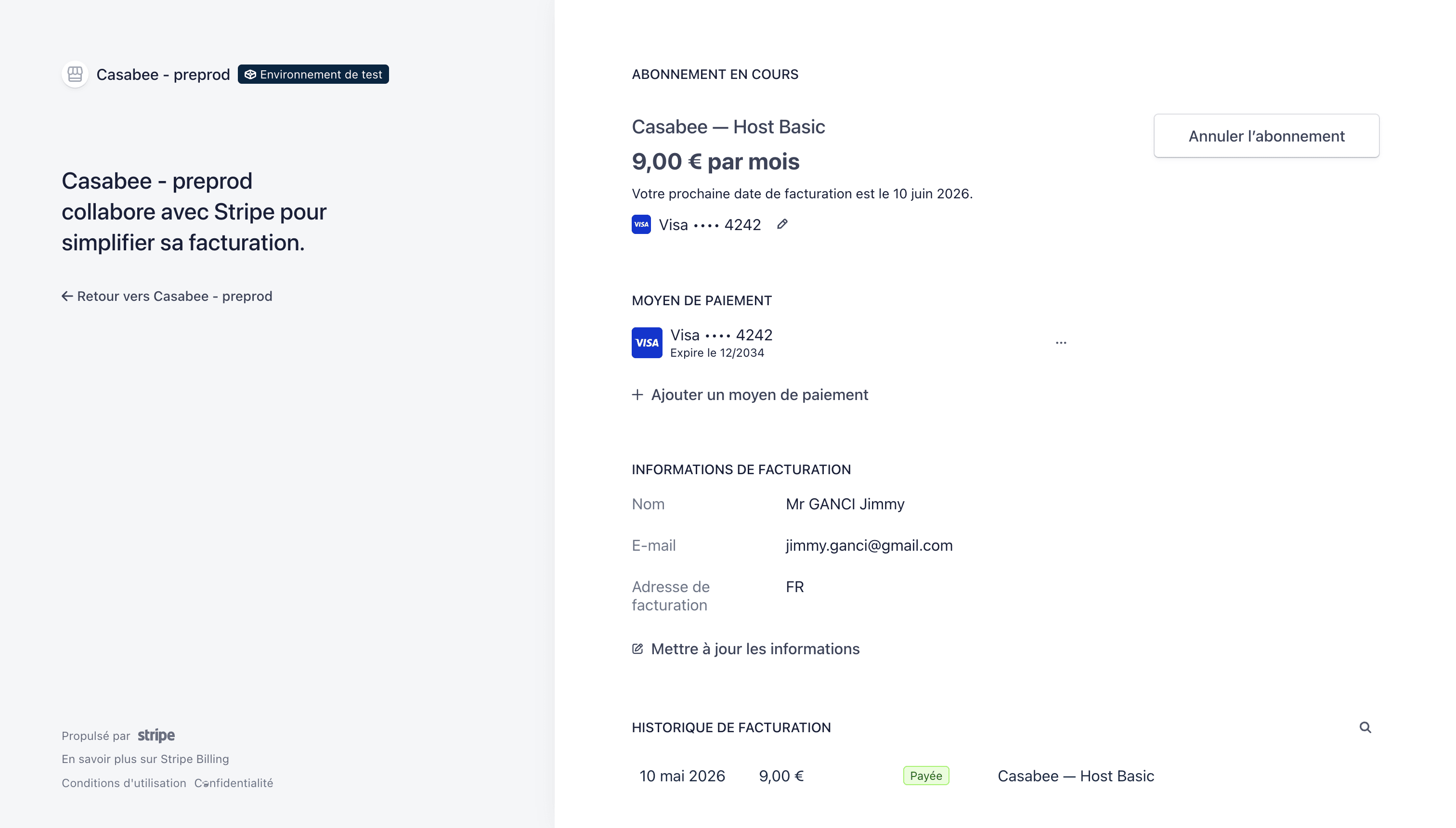
Download an invoice
Next to each payment line, a « Download invoice » button (PDF):
- Official Stripe PDF format with Casabee header.
- Includes VAT, legal mentions, invoice number.
- Directly usable for your accounting.
Invoices sent automatically by email
With each successful charge, Casabee also sends the invoice as a PDF to your host account email. No need to come fetch it manually each month — it's in your inbox as soon as the payment is validated.
Change your bank card
To change your card (renewal, loss, theft):
- In the Stripe portal, go to the « Payment methods » section.
- Click on « Add a payment method ».
- Enter your new card.
- Set it as the default method.
- Optional: delete the old card.
The next charge will automatically use the new card.
Add a backup payment method
You can register several payment methods on Stripe (main card + backup card). In case of failure on the main card, Stripe will automatically try the next one. Handy to avoid a service interruption in case of an expired card.
Update billing information
From the Stripe portal, you can also modify:
- The company name displayed on your invoices.
- The billing address.
- The intra-community VAT number.
- The invoice receipt email (if different from the host account).
This information will appear on all your future PDFs.
Cancel your subscription
To cancel completely, click « Unsubscribe » at the bottom of /hosts/subscriptions, then confirm.
The cancellation is effective at the end of the current period. You keep your plan until that date, then your account goes back to the free Starter plan and its quotas (see Change subscription plan). Your data is preserved: you can resubscribe at any time.
In case of payment problems
If a charge fails (expired card, exceeded limit, insufficient funds):
- You receive an email from Stripe and an email from Casabee.
- Stripe automatically retries several times.
- If all attempts fail, your subscription goes to suspended.
Update your card quickly to avoid interruption.
Next step
To adjust the general settings of your account, see Configure your profile and appearance.