Organize your categories
Create, order and customize the categories that structure the display of your modules and products.
Categories are the backbone of your booklet. They group modules and products by theme (Activities, Events, Shop…) and determine the display order on the guest side. This page explains how to create, order and customize them.
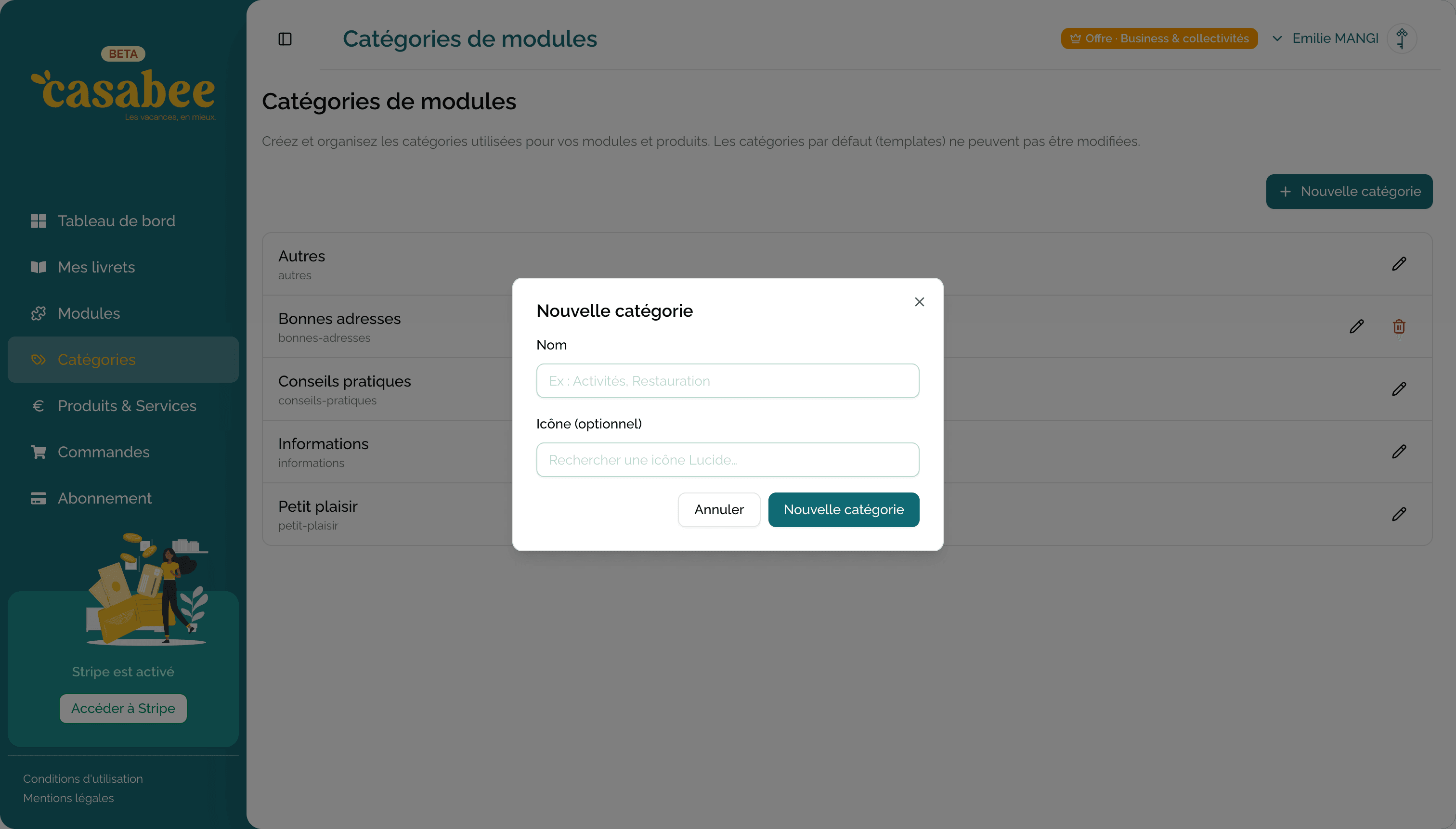
Casabee templates vs custom categories
Casabee distinguishes two types of categories:
Casabee templates
Categories pre-defined by Casabee (Activities, Events, Insider tips, Services…). Locked, read-only. You can neither rename them nor delete them.
Custom categories
Categories you create yourself. 100% editable: name, icon, color, order, deletion.
Templates cover 80% of common cases. Custom categories help you complete (e.g. « Kids' corner », « Basque specialties », « Premium services »).
Create a custom category
Go to /hosts/categories.
- Click on « + New category ».
- Enter the name (short and clear).
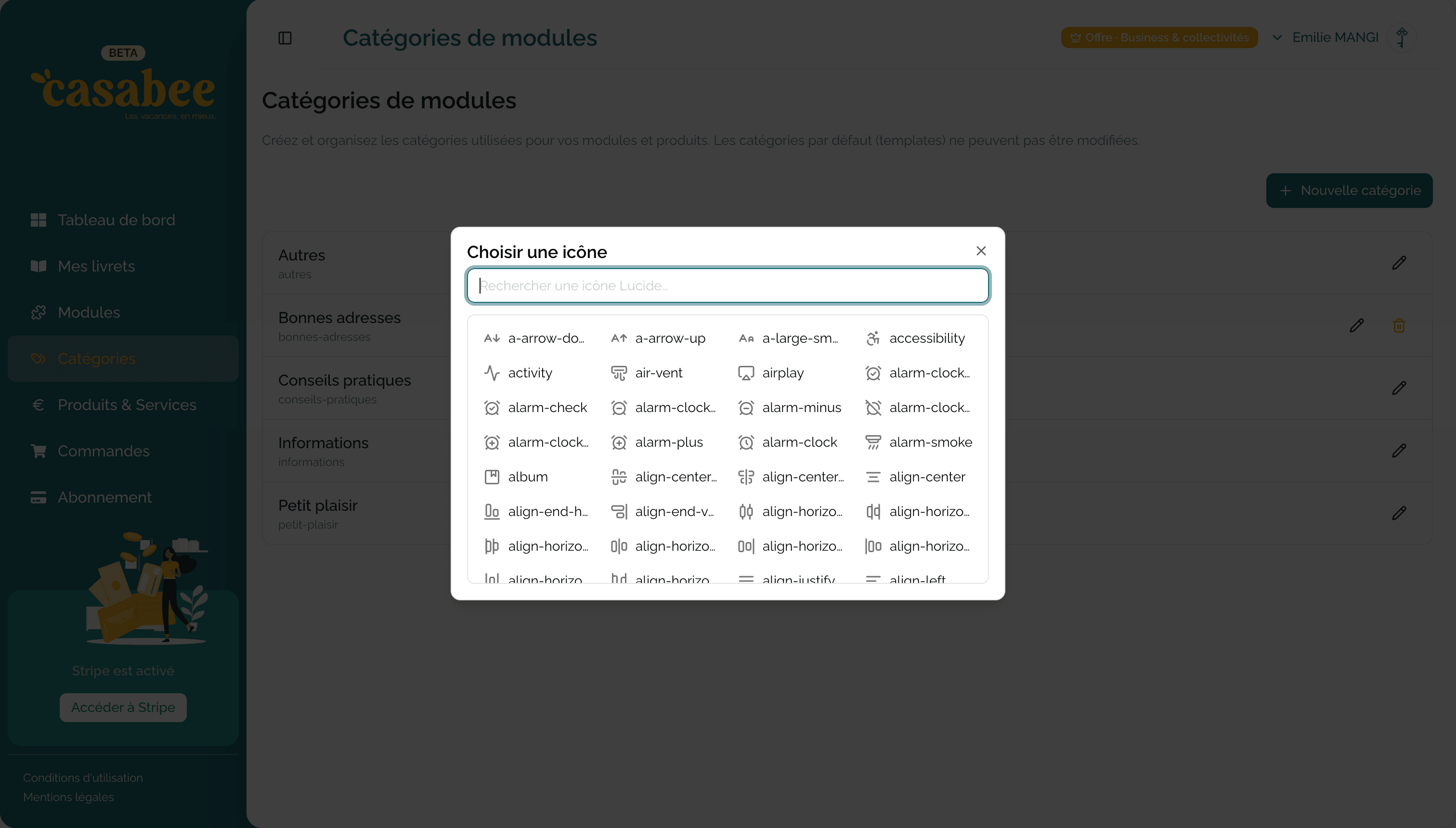
Choose an icon from the Lucide library (dynamic search: type bike, coffee, map…).
- Optional: choose a color (hex or palette).
- Save.
Reorganize categories
The order of categories on the management page corresponds to the public display order on your booklets.
On /hosts/categories, click on the « Sort categories » button.
- Drag and drop the categories to reorder them.
- Templates and custom categories can be mixed — you decide the overall order.
- Click on « Save order » to confirm.
Place at the top the categories that are most useful on arrival (Practical services, Wi-Fi & check-in), and lower down the discovery categories (Activities, Insider tips).
Edit a custom category
You can at any time:
- Rename the category.
- Change the icon or color.
- Disable the category temporarily (it disappears from booklets without being deleted).
- Delete the category permanently.
Delete a category
Reassign modules first
Before deleting a category, check that no module or product is associated with it. If so, reassign them to another category. Otherwise, this content will end up uncategorized and won't display correctly on your booklets.
The interface warns you if you try to delete a category in use. You can choose:
- Cancel the deletion.
- Automatically reassign the content to a category of your choice.
Best practices
- 3 to 8 categories is enough: too many categories drown the information.
- Short names: « Activities » rather than « Activities to do in the region ».
- Consistent icons: use icons all in the same style (outline or filled, not a mix).
- Same categories across all your booklets: makes reading easier if a guest consults several of your properties.
Next step
With your categories in place, you can now create modules properly organized or detect POIs around your property.