Change subscription plan
Choose the Casabee plan suited to your business and switch between plans according to your needs.
Is your business evolving? Have you added a third gîte? Do you want to enable the shop on all your booklets? Casabee lets you change plan at any time, up or down, from your subscription area.
Access the subscription area
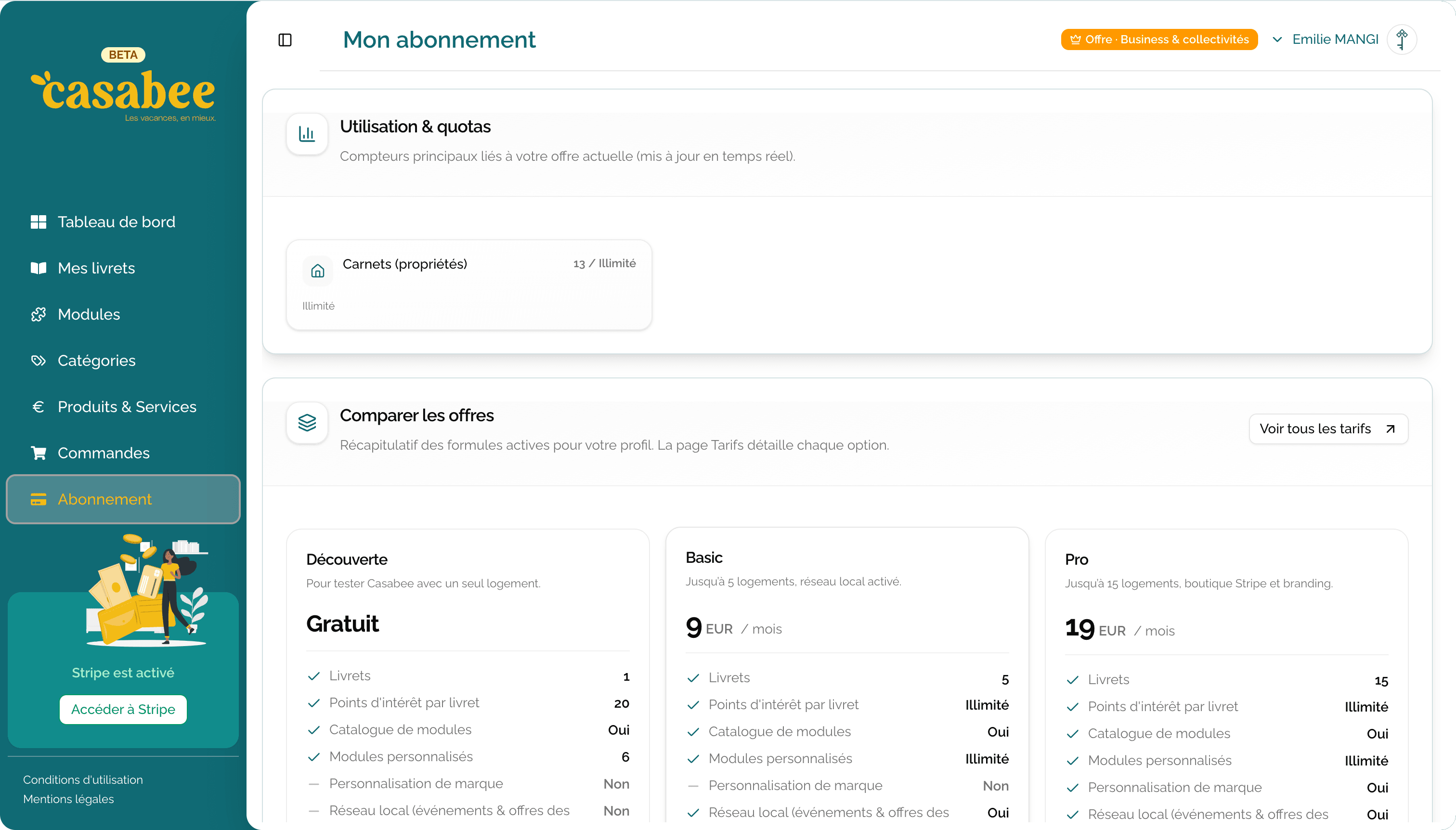
Go to /hosts/subscriptions from the « My subscription » entry of your profile menu. There you'll see:
- Your current plan (name, next billing date).
- Your consumed quotas (active booklets, modules, products…).
- The list of available plans with their price and limits.
- Your payment methods, and access to the Stripe billing portal for your invoices.
Understanding quotas
Each plan includes limits on:
- The number of active booklets simultaneously.
- The number of modules in your library.
- The number of products in your library.
- The advanced features (multi-user, white label, priority support).
The screen clearly shows your consumption: « 3 booklets out of 5 used », « 18 modules out of 50 », etc.
Change plan
On /hosts/subscriptions, « Compare plans » section, find the plan you want to activate: monthly price and included features.
Click « Subscribe » if you have no paid subscription yet, or « Switch to this plan » if you already have one.
First subscription: you're redirected to Stripe Checkout to enter your payment information, then you return to Casabee with your new plan active.
Plan change: it applies right away, without going through Stripe Checkout again. The price difference is prorated on your next invoice.
Casabee subscriptions are monthly, with no commitment. The Business & public bodies plan is on request: click « Contact us ».
Trial period
Some plans include a free trial period (typically 14 or 30 days). During this period:
- You enjoy all the features of the chosen plan.
- No charges are made.
- You can cancel at any time at no cost.
- At the end of the trial, charging starts automatically, unless you've cancelled.
Downgrade: watch out for quotas
Risk of read-only mode in case of downgrade
If you switch to a lower plan and exceed the new quotas (e.g. you have 8 booklets but the chosen plan allows 5), some of your booklets may switch to read-only or be automatically archived. Your data is never lost, but edit access is restricted.
Before downgrading, check:
- That your number of active booklets fits within the new plan's limits.
- That your module and product library doesn't exceed the quotas.
- That the features you use (shop, multi-user, white label) are included in the target plan.
If needed, first archive surplus booklets or content, then change plan.
Full cancellation
To fully cancel your subscription, click « Unsubscribe » at the bottom of /hosts/subscriptions, then confirm. The cancellation takes effect at the end of the current period: you keep your plan until then, then your account goes back to the free Starter plan.
Next step
To manage your payment methods and download your invoices, see View invoices.