Create your first booklet
Follow the Casabee guided journey to set up your booklet: info, photos, modules, points of interest and products.
Creating a booklet is the founding step on Casabee. Rather than a long form, Casabee guides you through a multi-step journey that gets you laying down the right building blocks in the right order. You can come back to refine each piece later — this page is the overview.
Start the creation
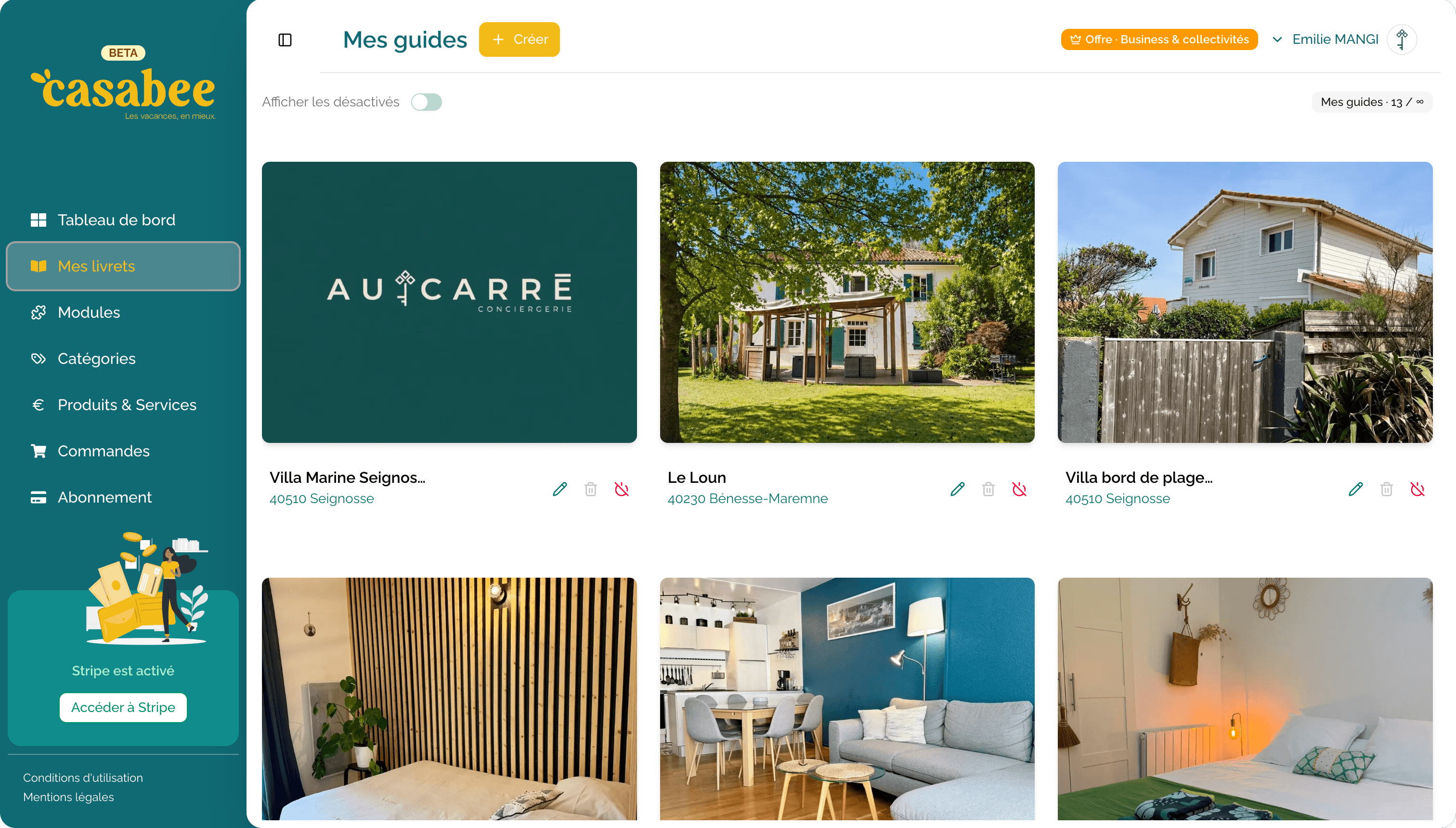
Go to /hosts/guides from the « My booklets » menu. There you'll see the list of your existing booklets (or an empty screen if it's your first). Click on the « Create my booklet » button at the top right.
Step 1 — The main information
Casabee first asks for the basic info about your accommodation.
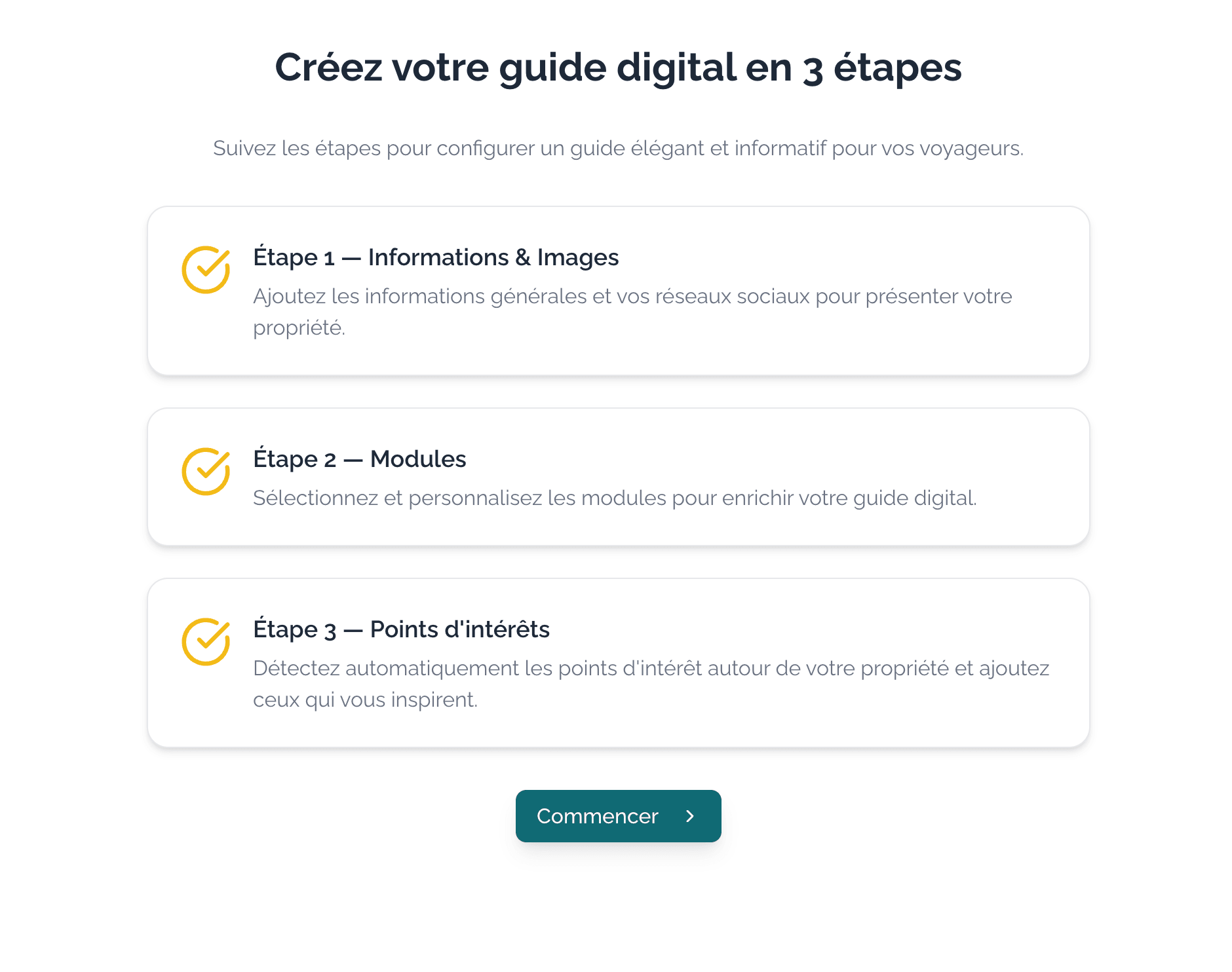
- Property name — for example « Villa Marina — Biarritz ». This is the title that appears at the top of the public booklet.
- Address — start typing, Google auto-completion suggests the right address. Select it to enable POI geolocation.
- Description — introduce your accommodation in a few sentences (atmosphere, amenities, highlights).
Step 2 — Your photos
A great gallery makes all the difference for the guest's first impression.
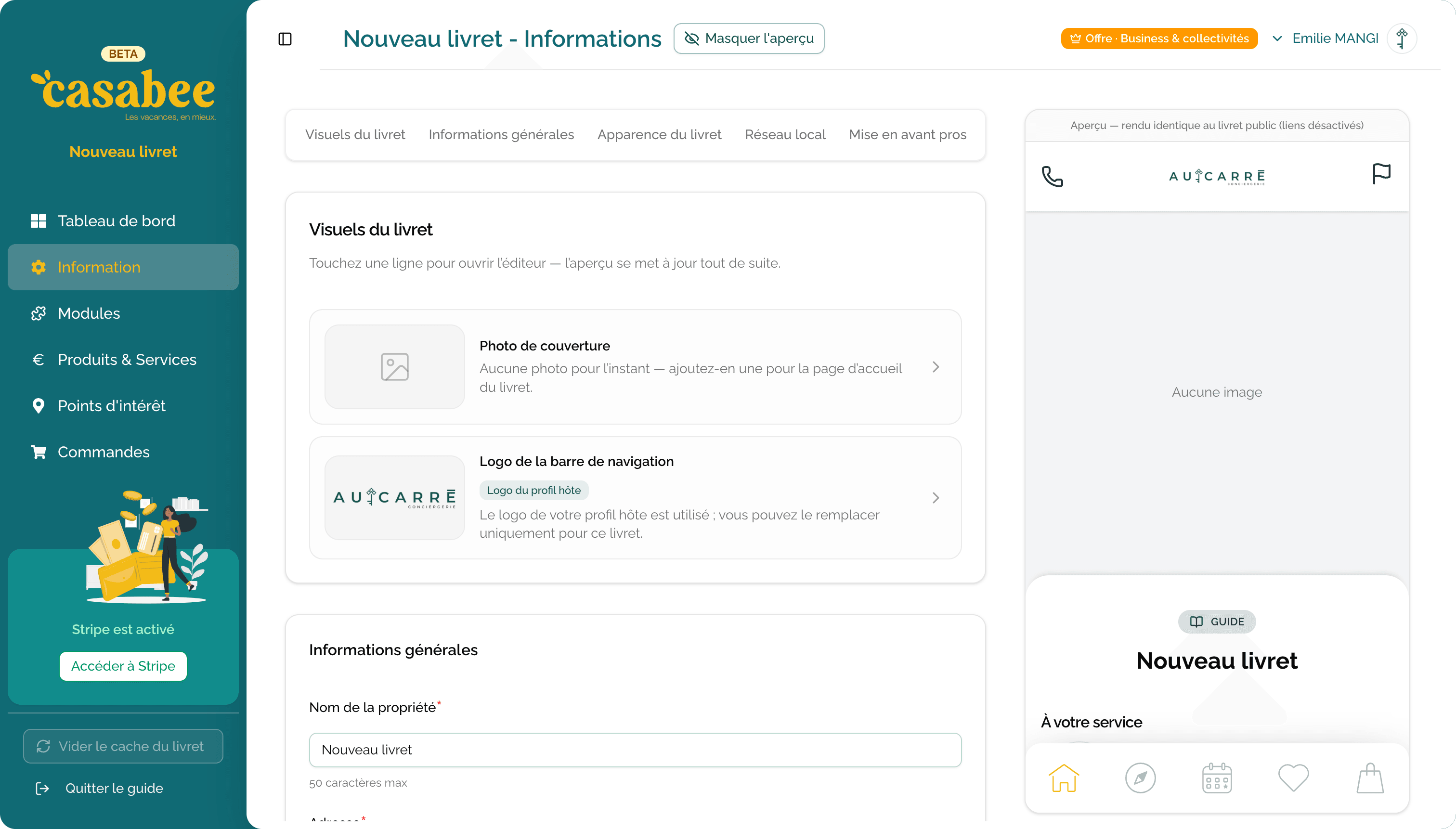
- Drag and drop your photos into the gallery.
- Rearrange the order — the first photo is the booklet cover.
- Use high-resolution, landscape, bright photos.
Step 3 — Your first modules
Modules are the content blocks of your booklet: Wi-Fi, check-in, restaurant recommendations, walks, house rules… Casabee gives you a library of templates to get started quickly.
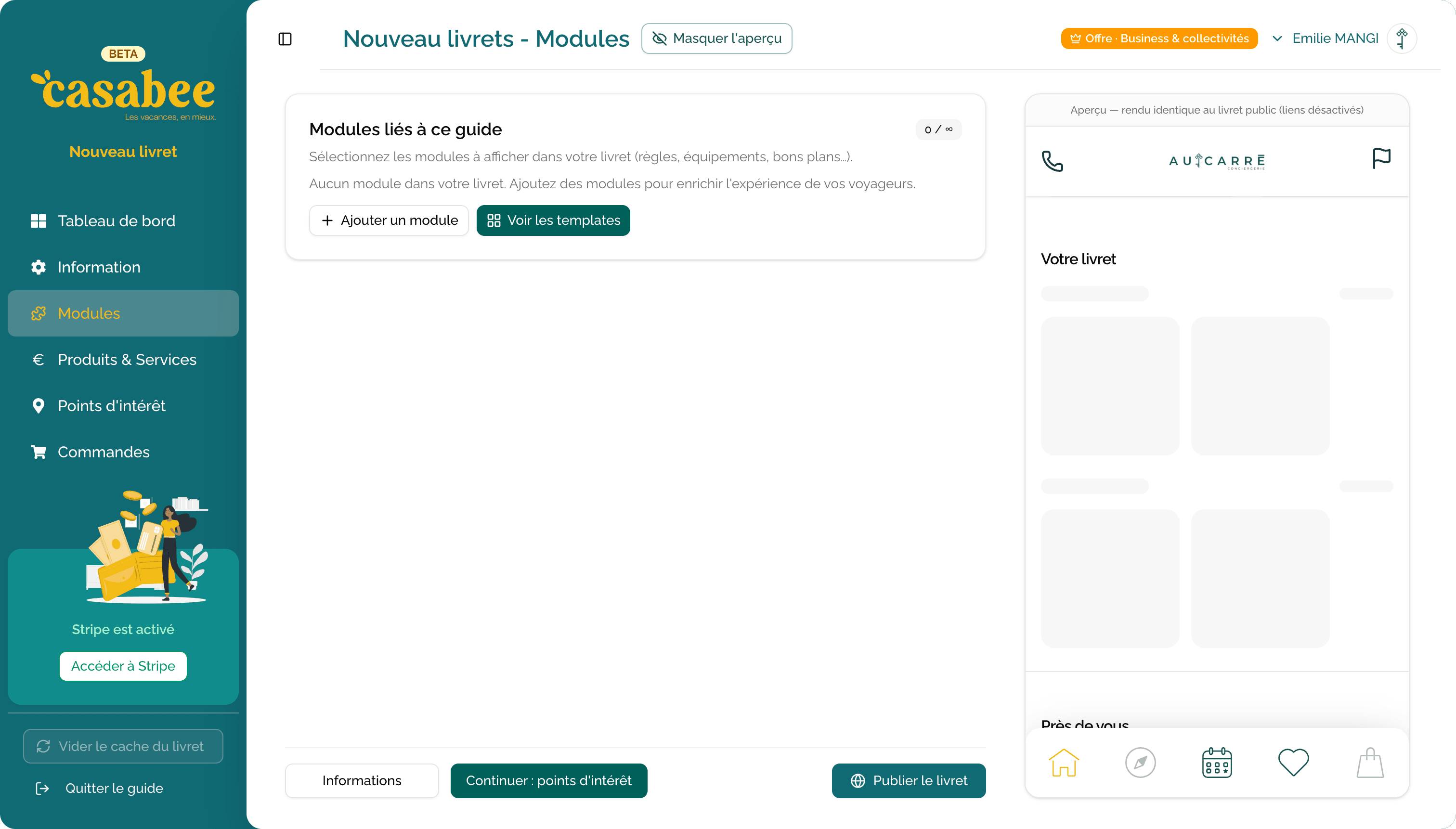
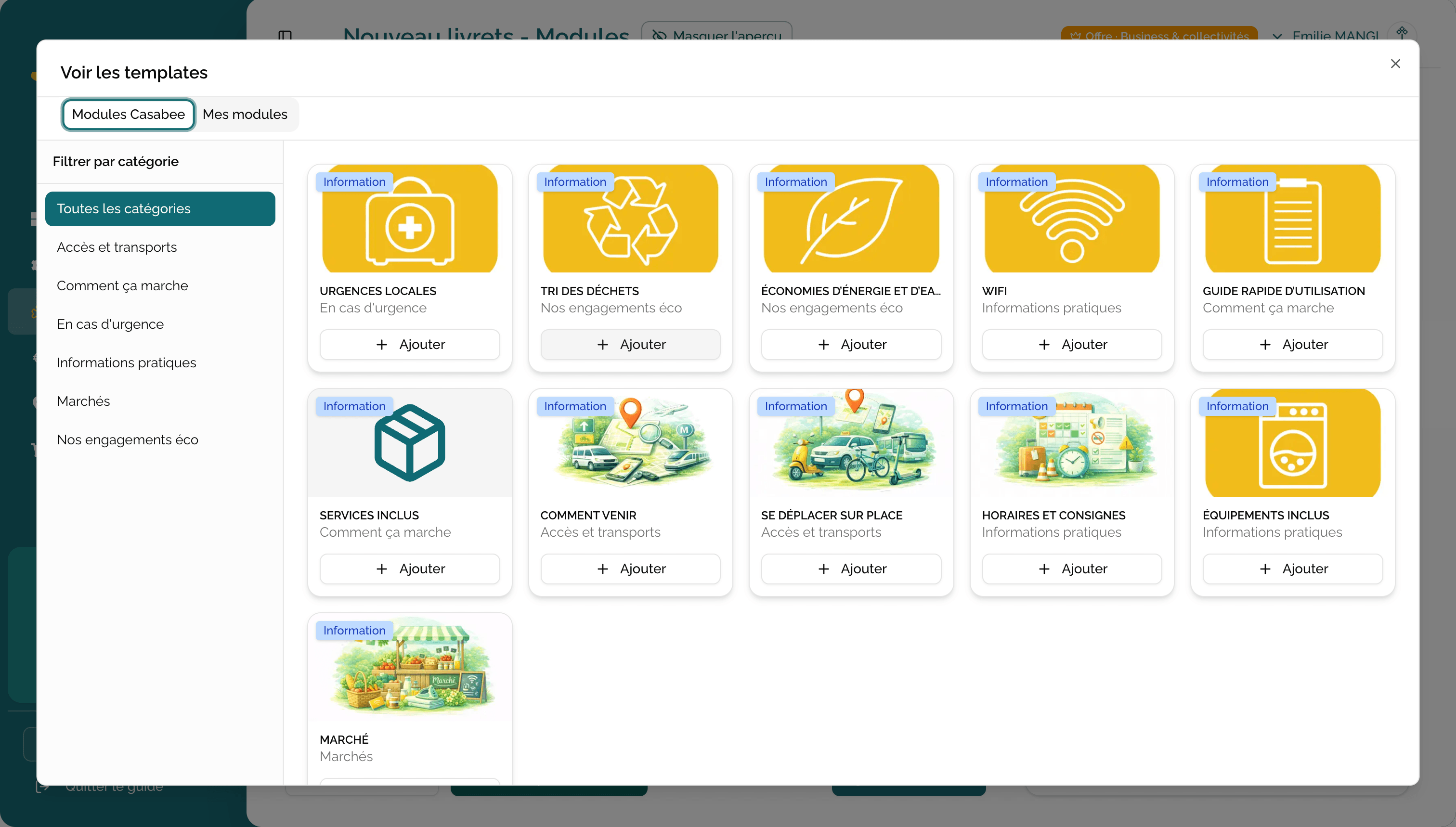
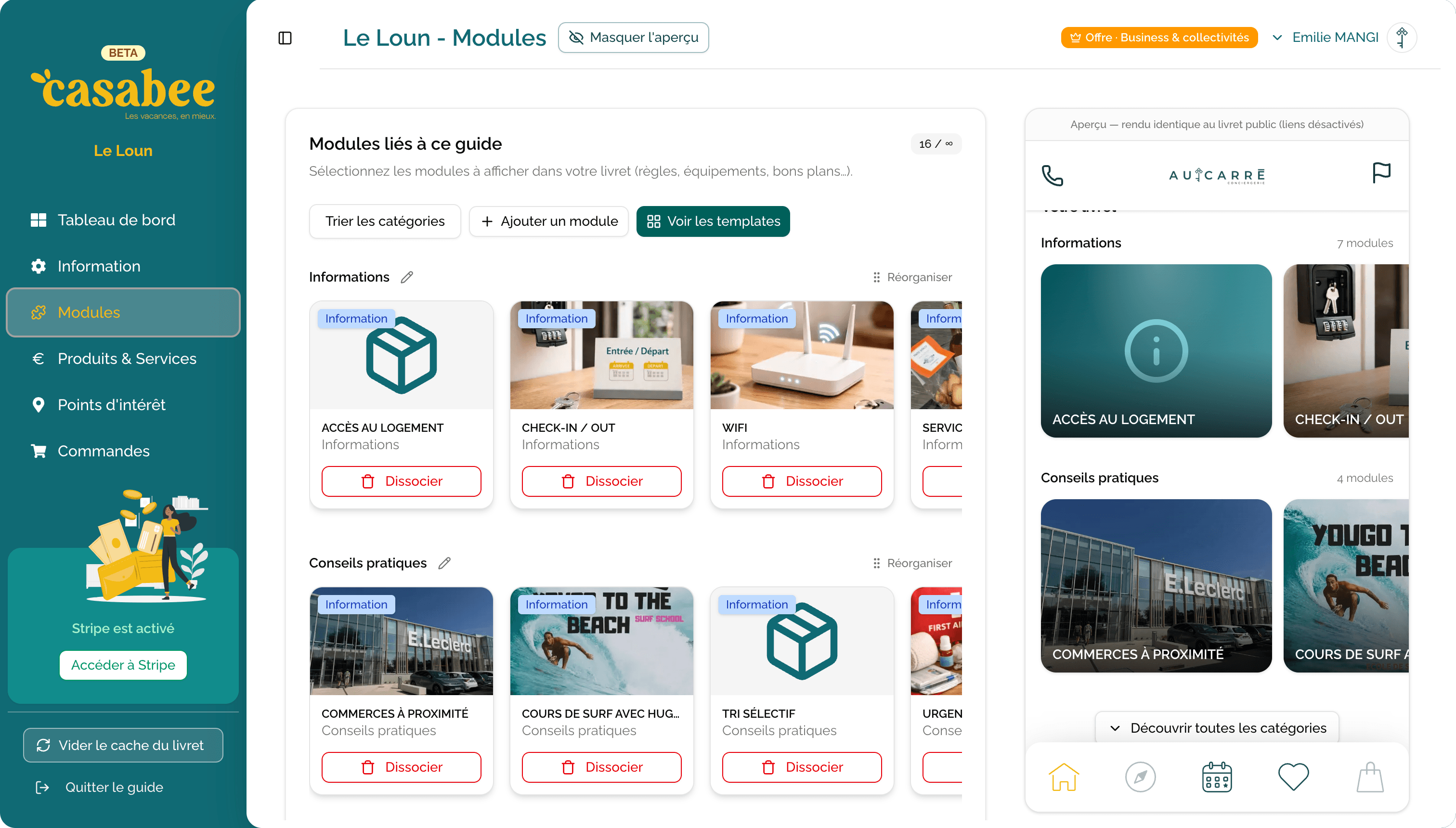
To go further: Understanding modules and Create and add modules.
Step 4 — The points of interest around you
Casabee automatically detects POIs (restaurants, shops, walks…) around your accommodation's address, using Google Places. All you have to do is pick your favorites.
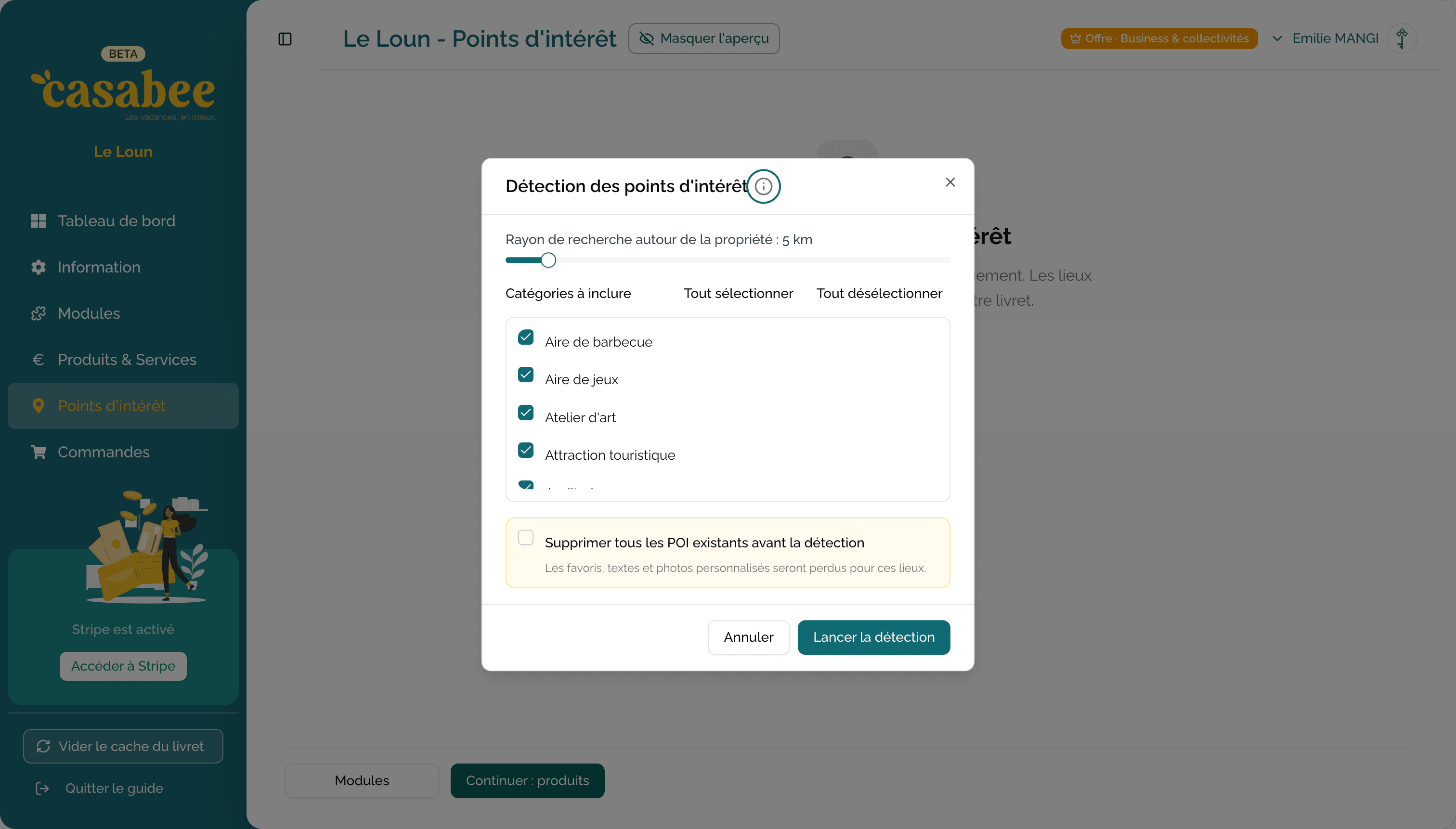
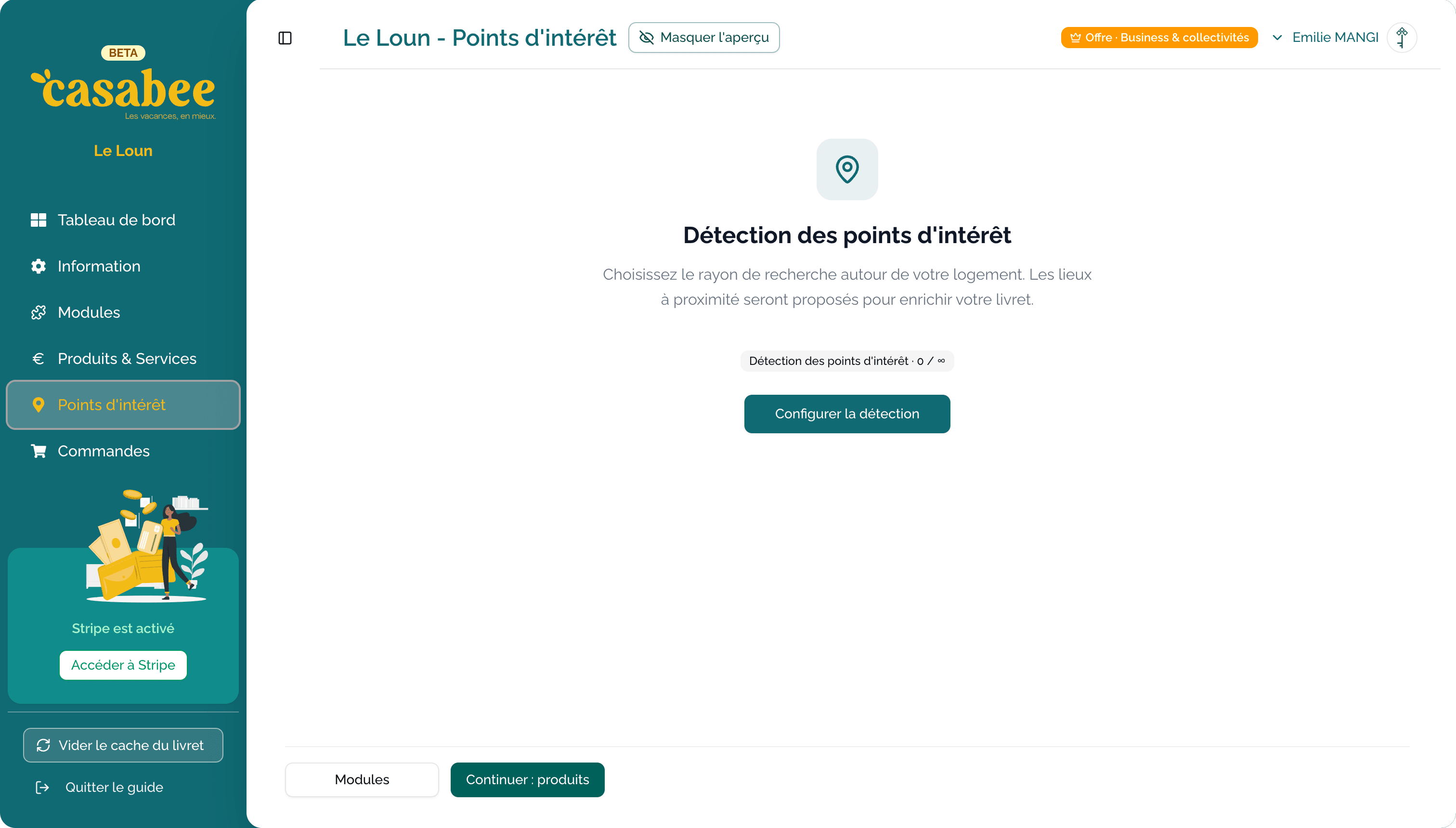
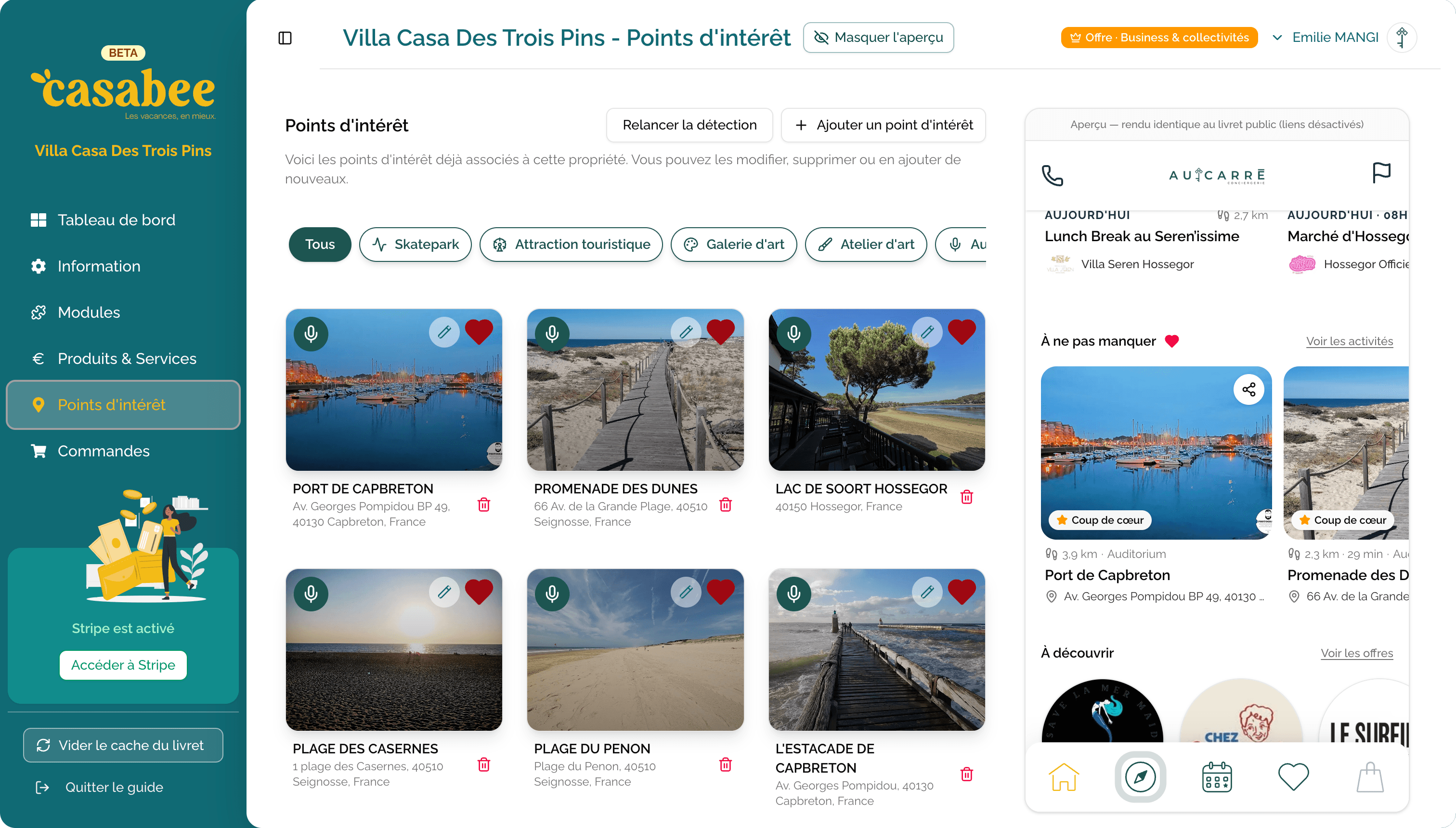
For the details: Automatically detect POIs and Add POIs manually.
Step 5 — Products (optional)
Casabee finally offers to add products that your guests can buy directly from the booklet: delivered breakfast, welcome basket, local experience, late check-out… It's your built-in upsell.
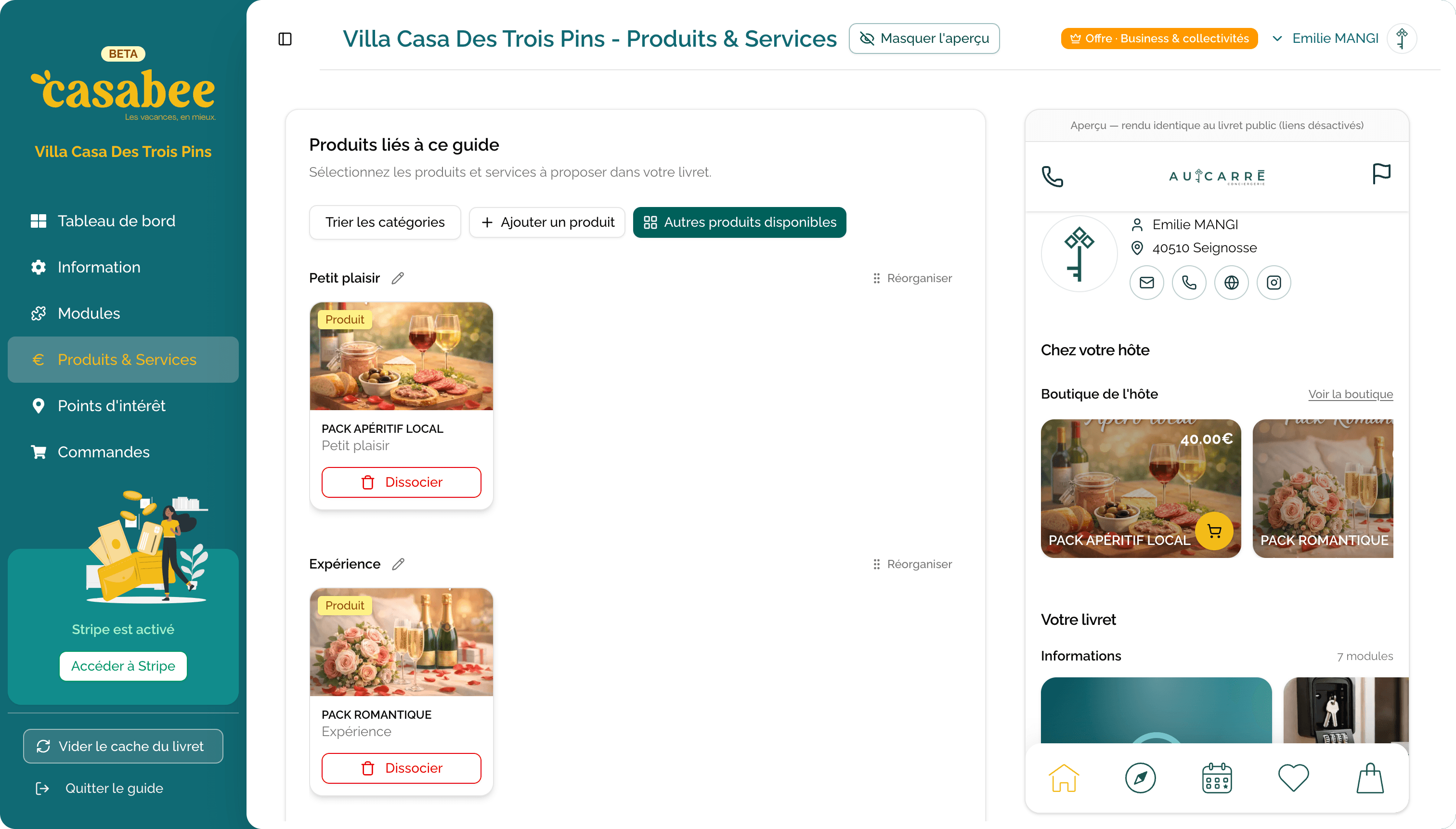
This step is optional and requires a Stripe connection to collect payments. You can skip it and come back to it later.
To go further: Set up Stripe to sell and Create a product.
Save as draft
At every step, your work is saved. Your booklet is in draft mode as long as you haven't explicitly published it — so it isn't yet publicly visible.
Don't rush to publish. Take the time to enrich your modules, pick your favorite POIs and polish your photos. You can come back to each step as many times as you need from the booklet's edit screen.
And now?
Once your booklet is created, you can:
- Customize its appearance (color, cover photo).
- Add more modules to enrich the content.
- Publish and share your booklet with your guests.
Welcome aboard!