Create a reward and link it to an event
Configure your reward template then associate it with an event to activate the scratch game.
Before you can distribute wins to guests, you must create a reward template then link it to an event. Here is the full procedure.
If you are starting out, first read Understanding the scratch game to master the vocabulary.
Step 1 — Create the reward template
Go to /partners/rewards.
- Click on « New reward ».
- Fill in the fields (see details below).
- Confirm. Your template is ready to be linked to one or more events.
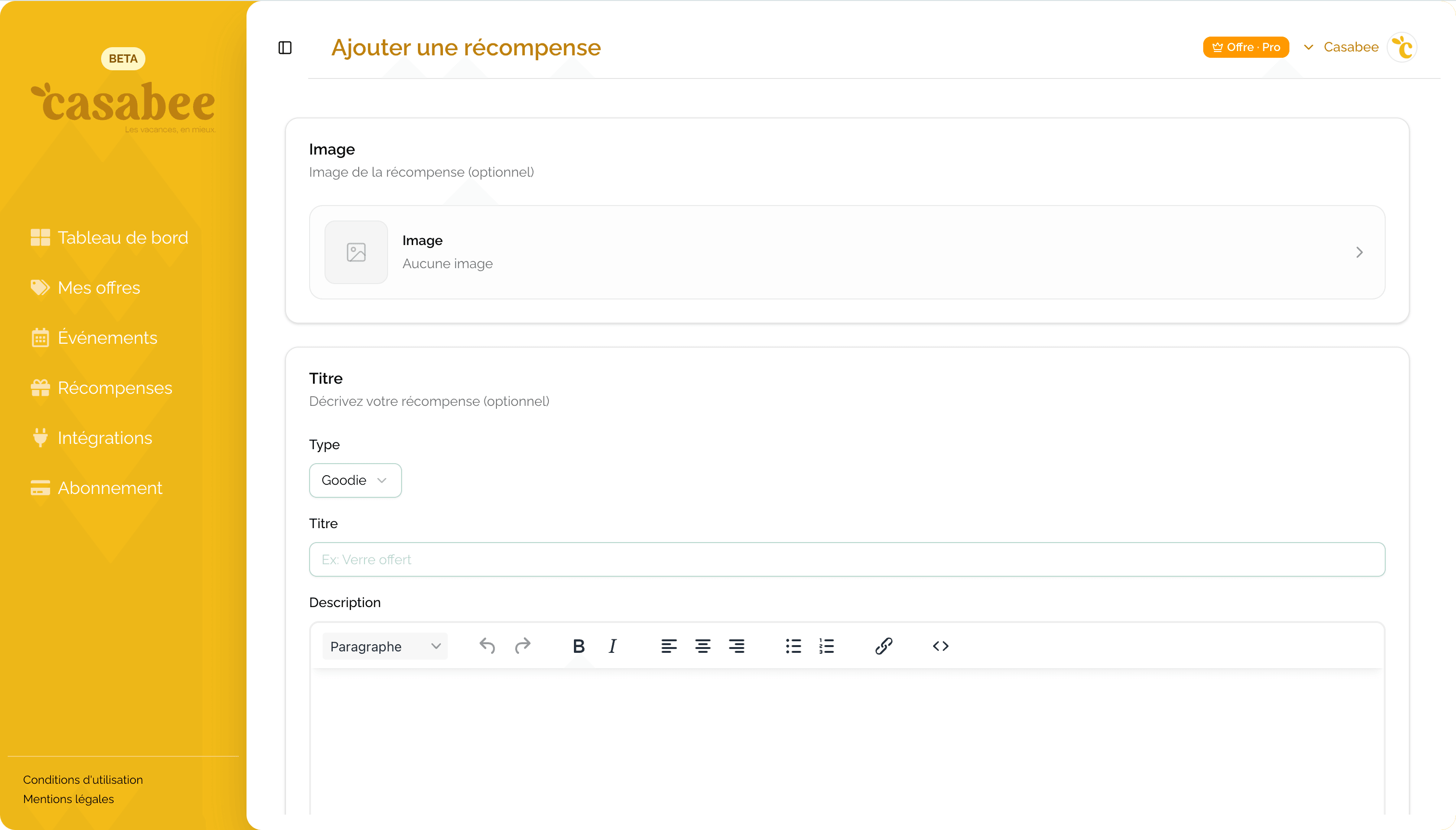
Available fields
- Type — choose the type that fits best:
goodie,discount,gift,offer,experience,access,content,service,product,advantage,surprise,prize,custom. The type drives the icon and wording on the guest side. - Title — short and concrete (e.g. « Complimentary drink », « -€10 off the bill »).
- Description — specify the conditions (on-site only, show at the counter, etc.).
- Image — a clear visual (object or atmosphere), JPG or PNG.
- Default probability — the percentage of winning tickets (1% to 100%). You can override it per event.
Step 2 — Link the reward to an event
Open the relevant event from /partners/events and go to the « Rewards » tab of the listing. The list is empty at first.
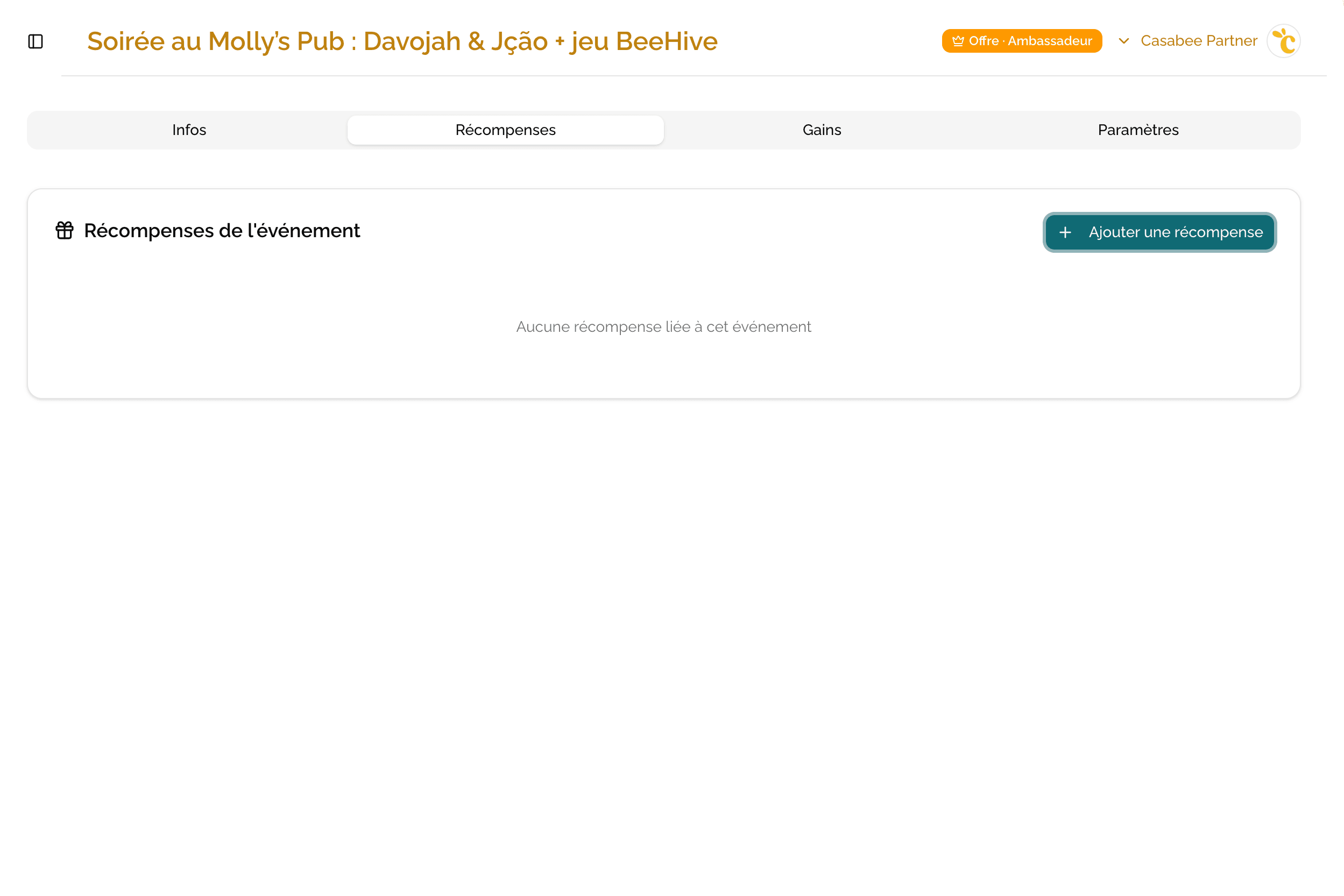
Click on « + Add a reward »: a window opens to configure the link.
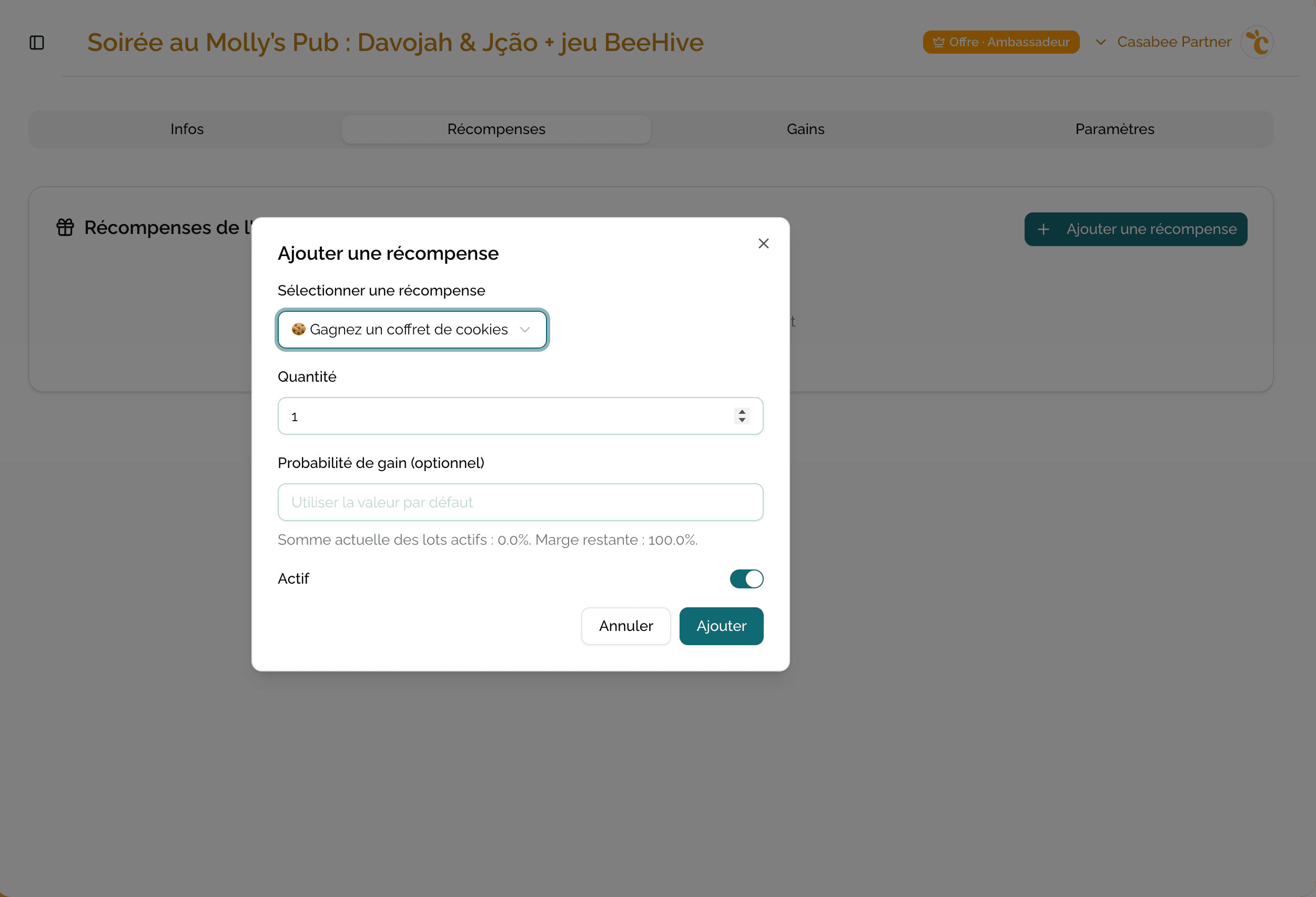
- Pick the reward template created in step 1.
- Set the quantity of wins to distribute for this event.
Leave the win probability empty to use the default value, or enter a new percentage for this specific event.
- Make sure the « Active » switch is enabled.
- Click on « Add ».
The sum of probabilities of active rewards on an event must stay ≤ 100%. Casabee shows you the remaining margin in real time (e.g. « Remaining margin: 70% »).
Step 3 — Configure the scratch game
Then go to the « Settings » tab of the event listing. You set the geographic and temporal conditions of the scratch game there.
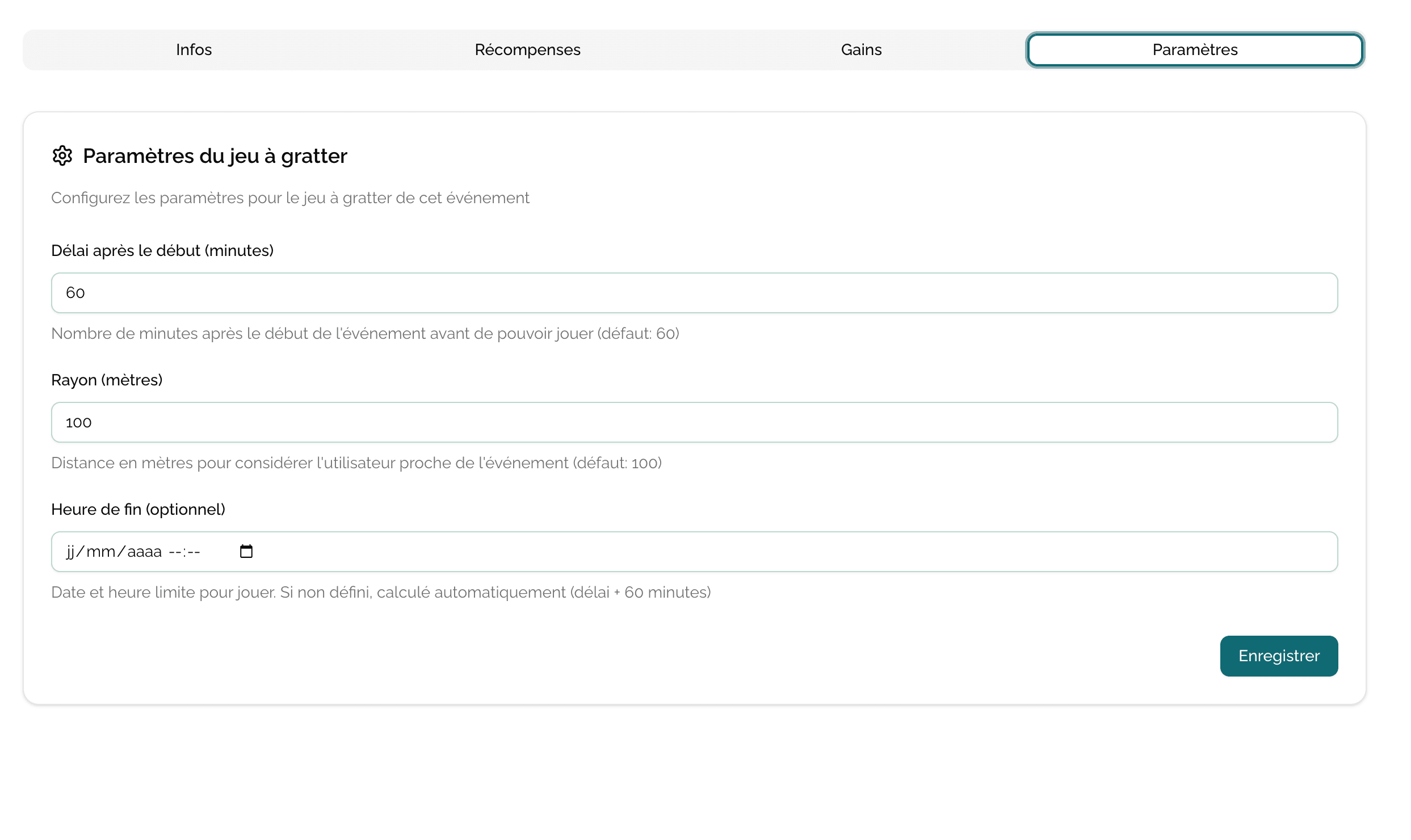
| Setting | Description | Default |
|---|---|---|
| Delay after start (minutes) | Time after the event start before the ticket appears | 60 min |
| Radius (meters) | Maximum distance between the guest and the event to be able to scratch | 100 m |
| End time (optional) | Date and time limit to scratch the ticket. If empty, auto-calc = delay + 60 minutes | — |
Click on « Save » to confirm.
A radius that's too wide dilutes the « here, now » effect that makes the game magical. Stay tight (200-500 m in cities, 1 km in rural areas) to maximize the sense of opportunity.
Edit or delete a reward
You can adjust a reward template at any time from /partners/rewards, but several safeguards protect guests:
- Deletion is blocked as long as there are active wins (« Pending » status). Wait until they are claimed or expired. - Probability modification after publication can be disabled to preserve the fairness of the game. - Title or image change is still possible but applies to all future wins, not to wins already earned.
Track the wins
From the partner dashboard or the event listing (« Wins » tab), you see in real time:
- the wins pending (to be claimed),
- the wins claimed (validated in store),
- the wins expired (unused).
When a guest arrives at your shop to claim their win, ask them to open BeeHive and show you the validation screen: a single click and the win switches to « Claimed ».