Create an event
Publish a concert, workshop or market by following the five-step form.
A Casabee event is a one-off or recurring outing that guests can add to their stay: concert, workshop, market, exhibition, festival… You publish them from /partners/events.
Start the creation
On the /partners/events page, click « New event ». A five-step form opens.
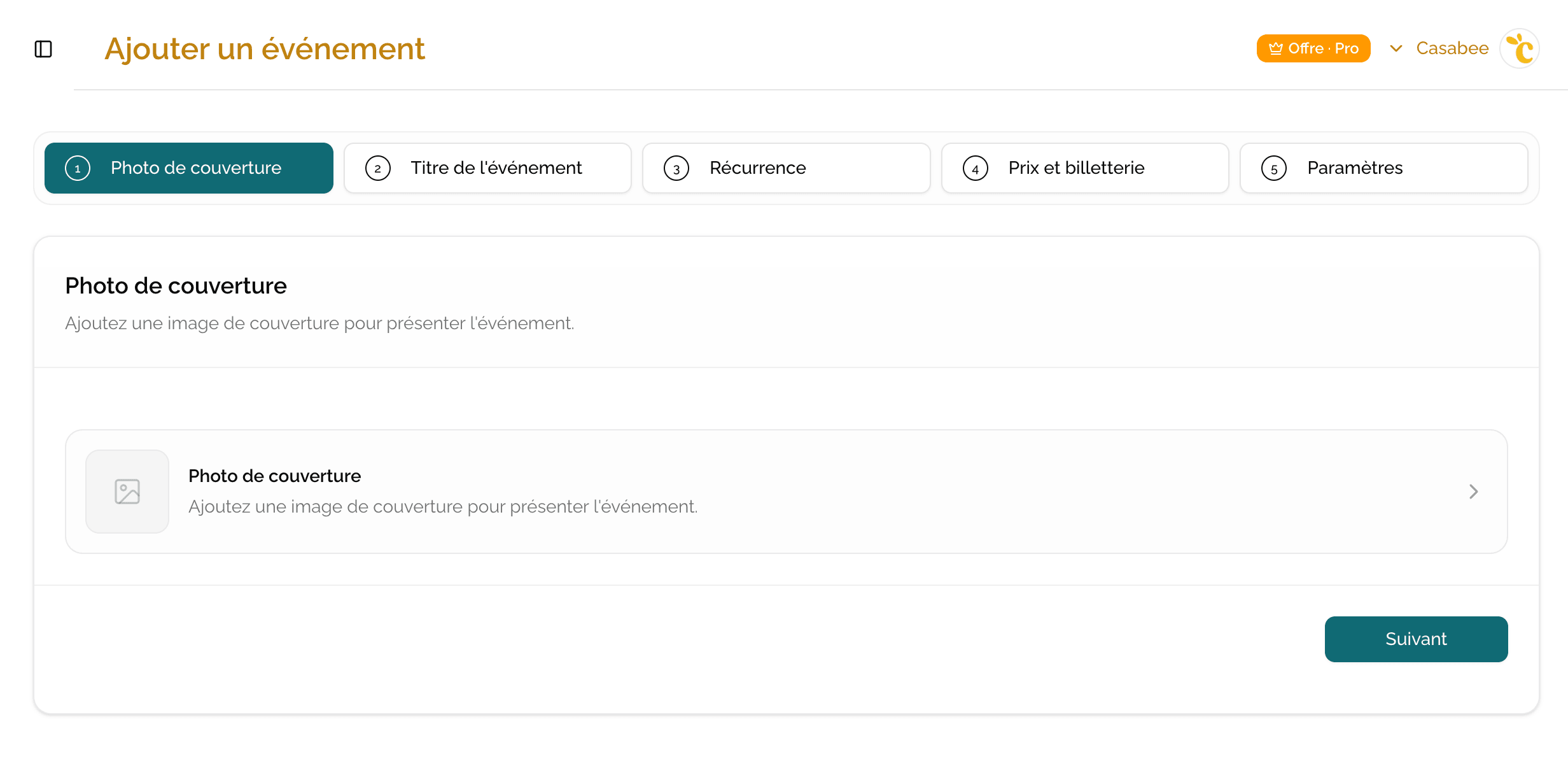
Step 1 — Cover photo
This is the first thing guests see. A bright image with a face or a meaningful detail can triple the views.
Step 2 — Event title
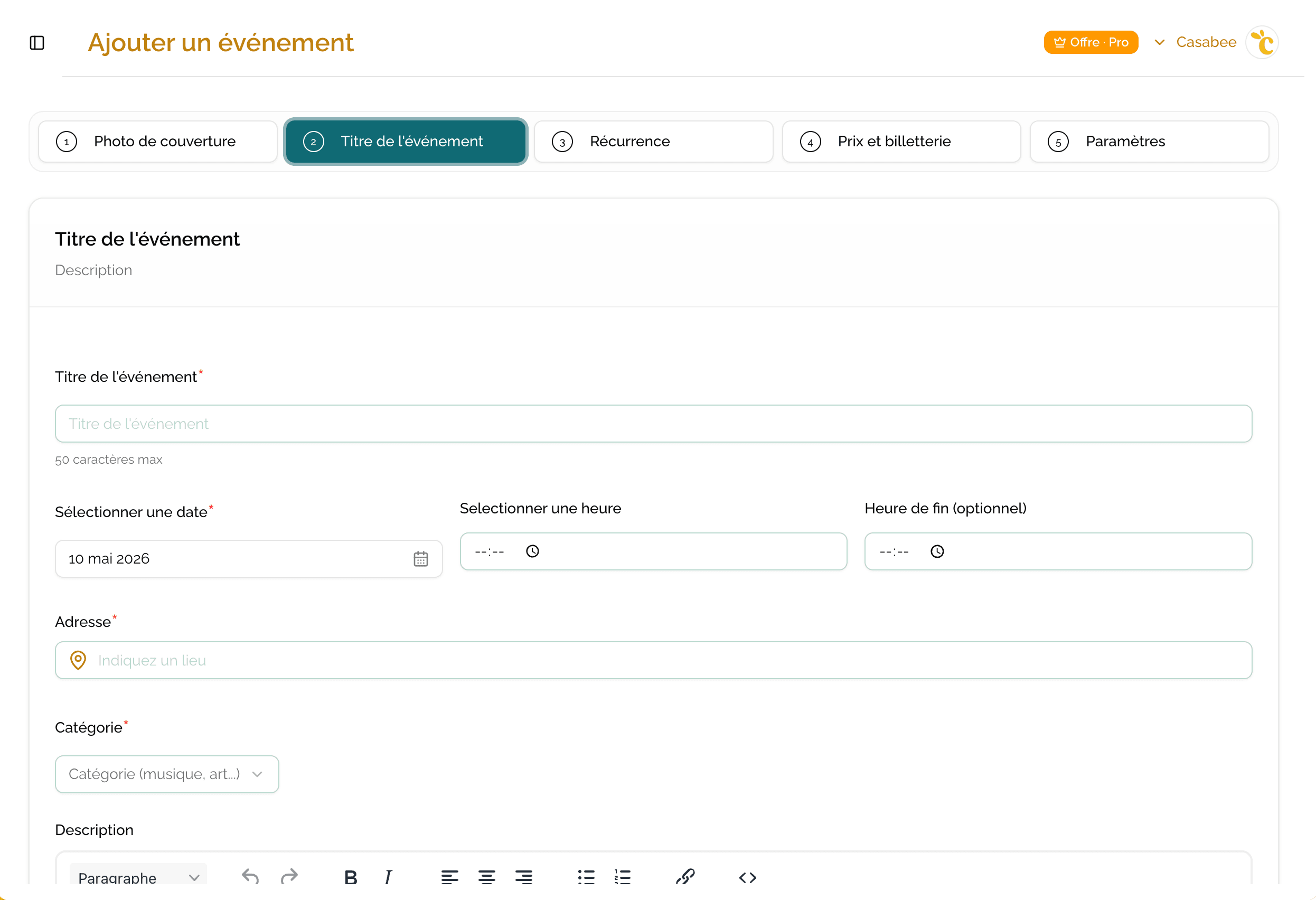
This step gathers all the basic info of the event.
- Title — 50 characters max, catchy.
- Date — start date, required.
- Times — start time and end time (optional).
- Address — use the Google autocomplete so the geolocation is accurate.
- Category — music, sport, culture, gastronomy, well-being…
- Description — 5,000 characters max; describe the atmosphere, the program, the target audience.
Step 3 — Recurrence
For events that repeat (weekly market, permanent exhibition, restaurant open several days), toggle the « Recurring » switch.
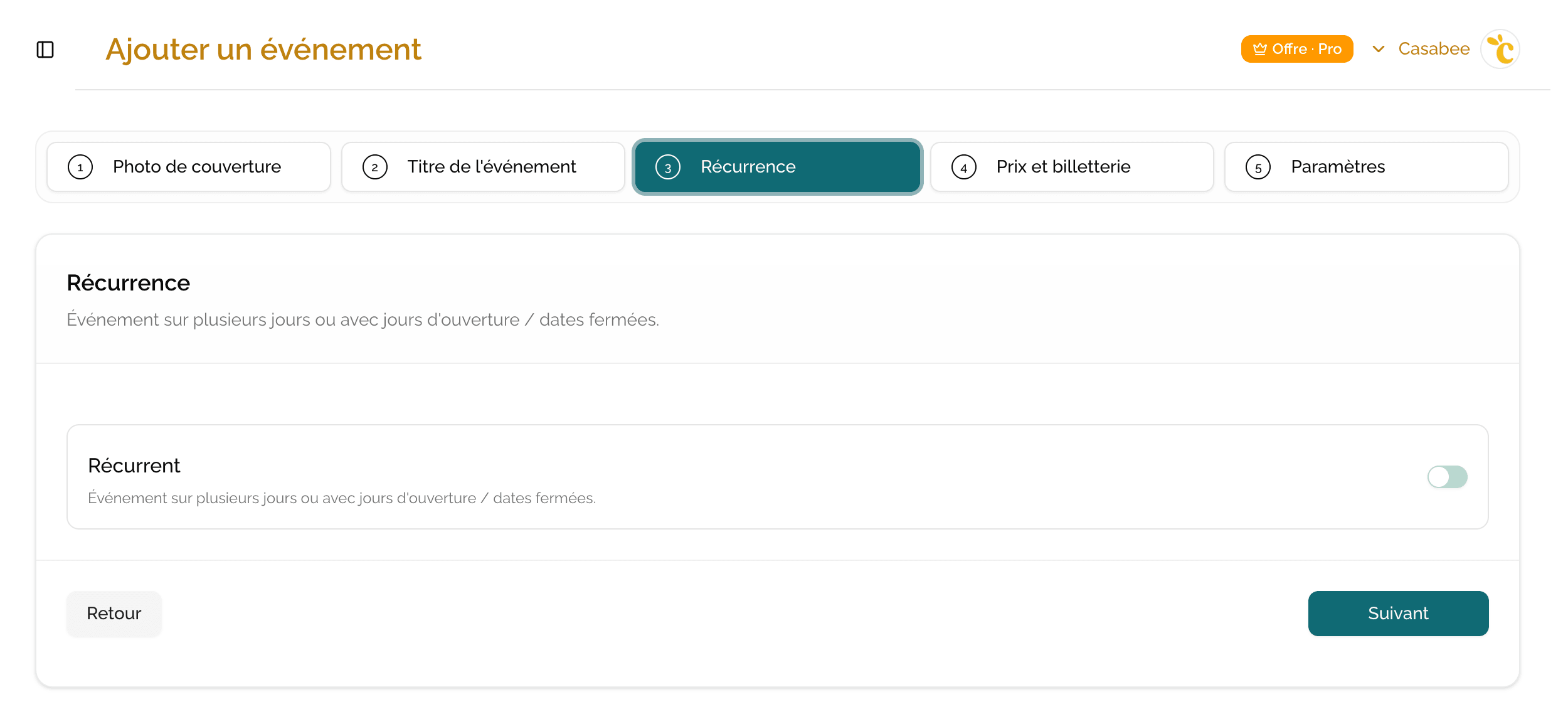
Once enabled, you can pick the opening days (Mon → Sun) and add closed dates (public holidays, annual leave). For more details: Manage recurring events.
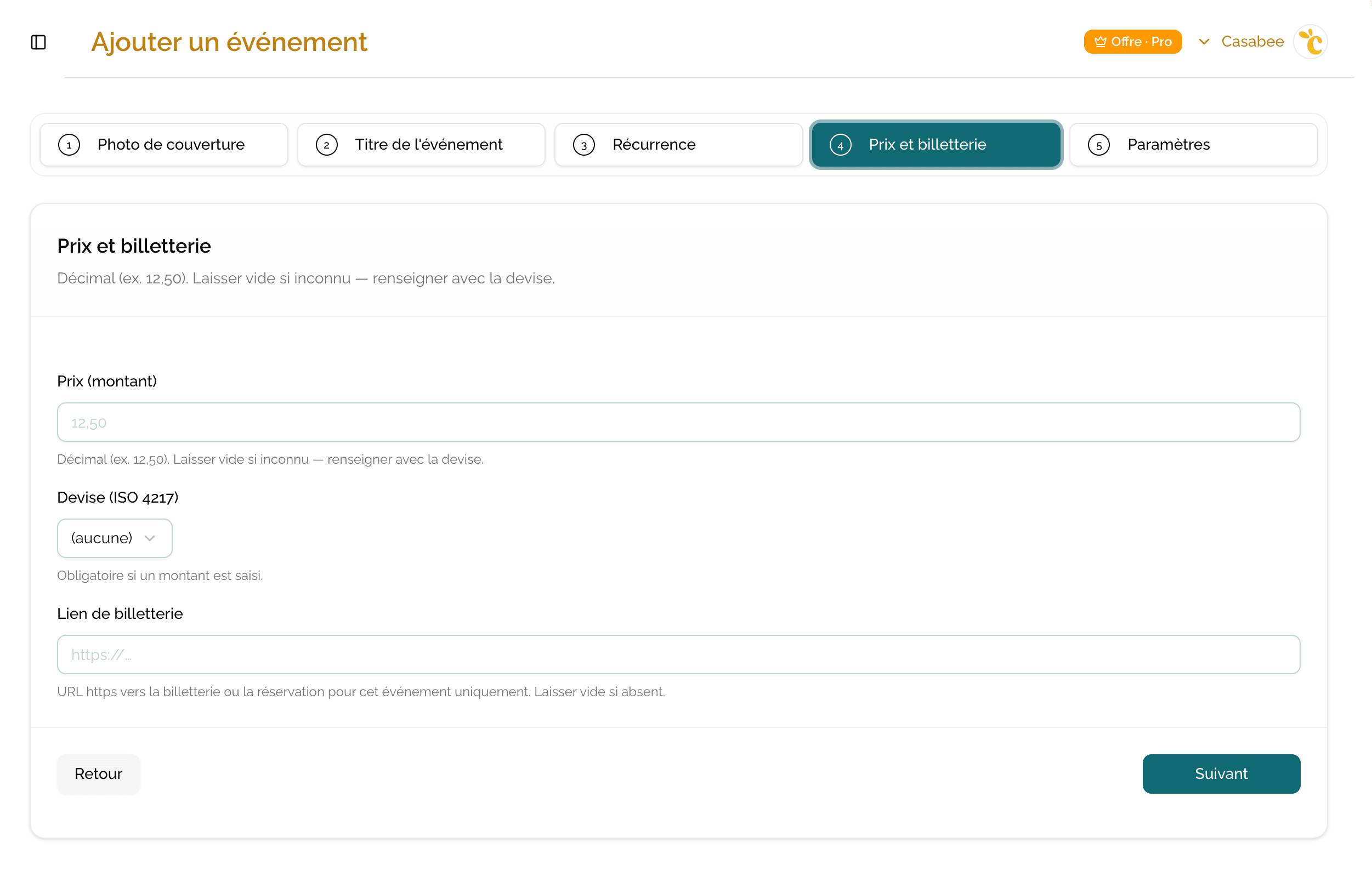
Step 4 — Price and ticketing
- Price (amount) — decimal (e.g. 12.50). Leave blank if the event is free or pay-what-you-want.
- Currency — ISO 4217 code (EUR, USD, GBP…). Required if an amount is entered.
- Ticketing link — https URL to your external platform (Helloasso, Eventbrite, Weezevent, your site…). The « Book » button appears automatically on the listing.
Step 5 — Settings
Here you decide the visibility of the event.
- Published — toggle on to make the event visible in guidebooks and on BeeHive. Off = hidden (draft).
- Private (my guidebook only) — toggle on to keep the event for your host guidebook only (useful if you are both a partner and a host).
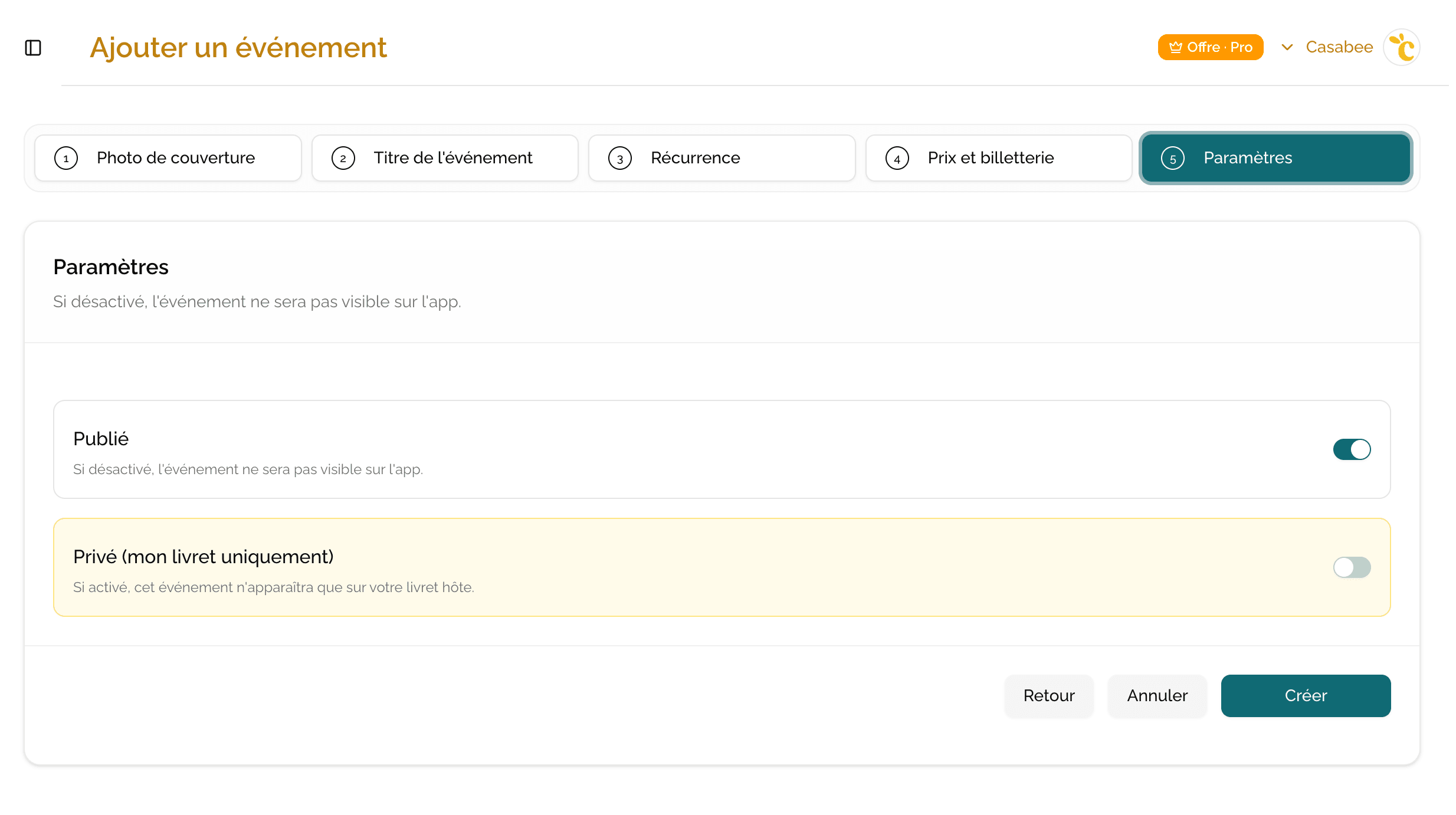
Click « Create » to confirm.
You can associate rewards with your event after creation, from its listing. See Create and link a reward.
Quotas by plan
- Essential — 3 active events at the same time.
- Connected — unlimited.
- Ambassador — unlimited + editorial badge.
A past event no longer counts. A recurring event with no end date counts for as long as it is online: give it an end date to free its slot once that date has passed.
Full steps
Go to /partners/events and click « New event ».
- Add the cover photo at step 1.
- Fill in the title, date, address, category and description at step 2.
- Configure the recurrence at step 3 if needed.
- Add the price and the ticketing link at step 4 if the event is paid.
- Toggle the « Published » switch at step 5 and click « Create ».